> For the complete documentation index, see [llms.txt](https://codifi-fdm.gitbook.io/codifi-docs/llms.txt). Markdown versions of documentation pages are available by appending `.md` to page URLs; this page is available as [Markdown](https://codifi-fdm.gitbook.io/codifi-docs/cross-platform-features/pre-registered-records-and-offline-collaboration.md).

# Pre-Registered Records & Offline Collaboration

Pre-create Records on the web, then have an entire field crew work on the same Record at the same time — fully offline — with media, GIS, and attribute data merging into one Record at sync.

Picture a three-person crew documenting the same feature: one person is taking photos, one is capturing the GIS geometry, and one is filling in the attribute fields. No cell service. Three devices, one Record.

Codifi supports this directly. Records are **pre-registered on the web** before the crew leaves the office, every crew member **joins the same Record** in the field, and when the devices come back online, everyone's work **merges into a single Record** — with a full history of who did what.

***

## The Short Version

1. **Office (web):** Pre-create the Records the crew will need, using a clear, unique naming scheme. Optionally print QR labels for them.
2. **Before leaving connectivity:** Every crew member syncs the Project on their device, so the pre-registered Records are already on board.
3. **In the field (offline):** Every crew member opens the *same* Record — either by picking it from the **Batch Records** list, or by scanning a teammate's QR code.
4. **Everyone works their piece** — photos, geometry, form fields — each on their own device, fully offline.
5. **Back online:** Each device syncs, and [Hydra](/codifi-docs/cross-platform-features/hydra.md) merges every edit into one Record. Verify the merge in the Record's history.

That's the whole model. The rest of this page walks through each step.

***

## Configuring (Web)

### 1. Pre-create the Records

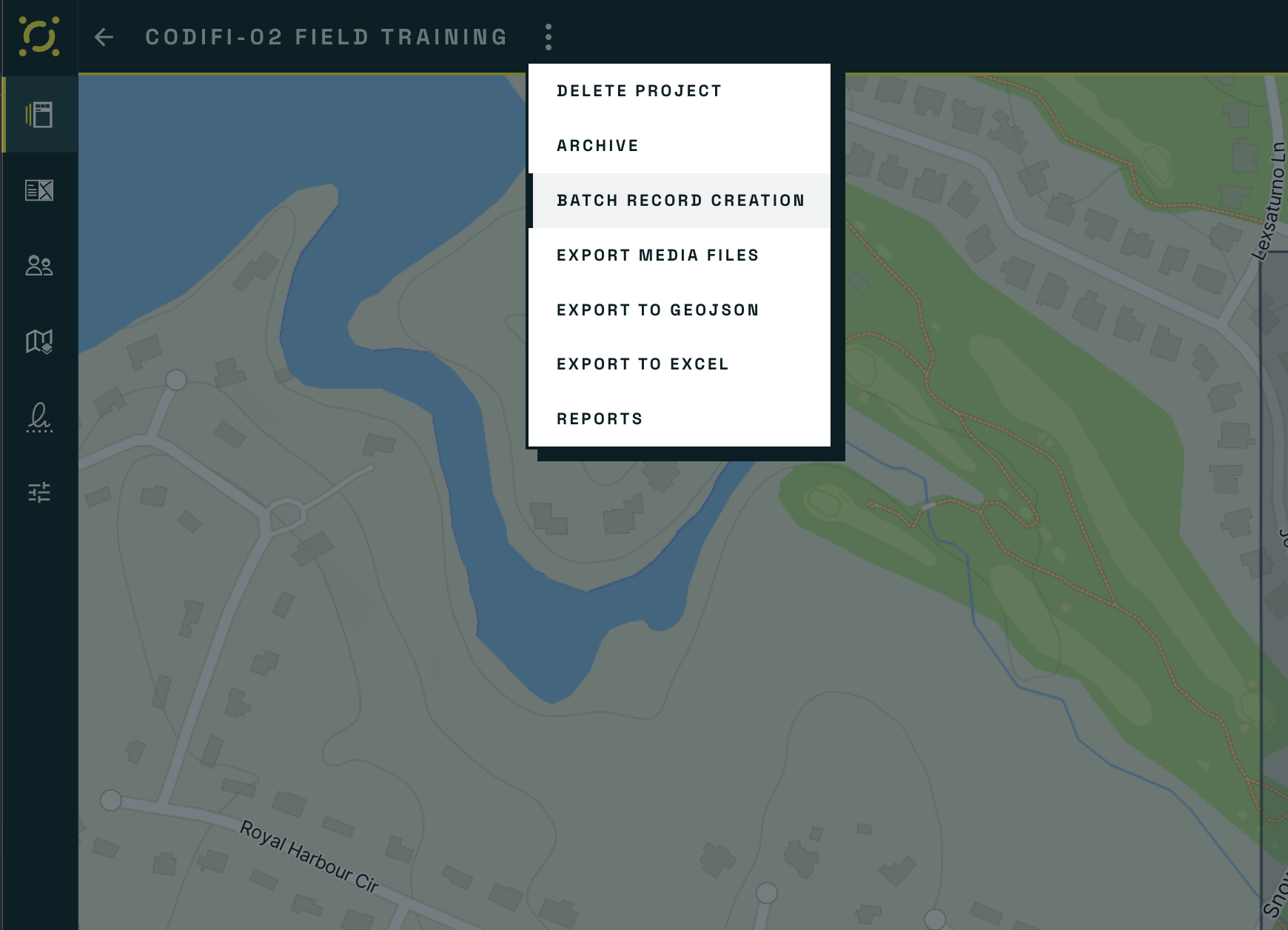
Open the Project on the web app, then open the **⋮ menu** next to the Project name and choose **Batch Record Creation**.

<figure><img src="https://3544178300-files.gitbook.io/~/files/v0/b/gitbook-x-prod.appspot.com/o/spaces%2FJ8P3pqhxdFwQkIOjOUut%2Fuploads%2Fgit-blob-2b6837ff062f06884101f9ae9404c42bcf24cee1%2Fpreregistered-batch-record-creation-menu.png?alt=media" alt="The Project menu on web with Batch Record Creation highlighted"><figcaption><p>The ⋮ menu next to the Project name — choose <strong>Batch Record Creation</strong>.</p></figcaption></figure>

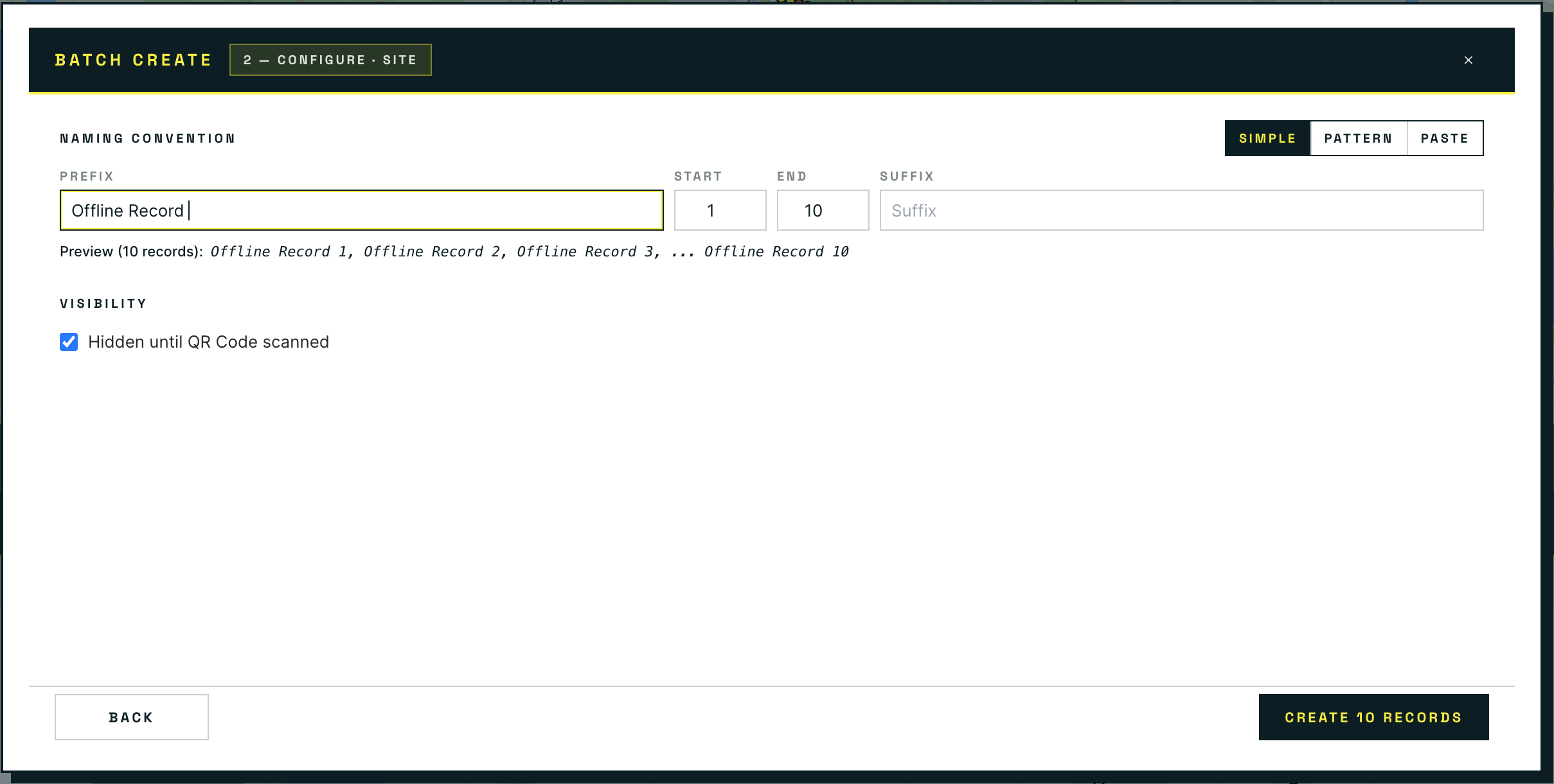
The Batch Create wizard walks you through choosing an archetype and configuring the batch:

* **Naming Convention** — a prefix plus a start/end number range (e.g., `Offline Record` 1–10), with **Pattern** and **Paste** modes for more complex schemes. The preview shows exactly what the names will be.
* **Visibility** — check **Hidden until QR Code scanned** to keep the pre-registered Records out of the main Records List on mobile until a crew claims them. They stay available from the **Batch Records** list (below), so field crews see a clean list instead of dozens of unstarted Records.

<figure><img src="https://3544178300-files.gitbook.io/~/files/v0/b/gitbook-x-prod.appspot.com/o/spaces%2FJ8P3pqhxdFwQkIOjOUut%2Fuploads%2Fgit-blob-18a01f6b59384bd2fd0af920cb88eb3d1793cf2a%2Fpreregistered-batch-create-dialog.png?alt=media" alt="The Batch Create dialog showing naming convention and visibility options"><figcaption><p>The Batch Create wizard — naming convention, number range, and the <strong>Hidden until QR Code scanned</strong> visibility option.</p></figcaption></figure>

### 2. Use a unique naming scheme

This is the single most important configuration choice. In the field, crew members will identify Records **by name** — so every pre-registered Record needs a name that can't be confused with another (`STP-A-001`, `STP-A-002`, … rather than `New Record (1)`, `New Record (2)`).

A good naming scheme is what lets three people independently open the same Record and *know* it's the same Record.

### 3. Optional: print QR labels

Each Record's QR code is available from its drawer panel on web, and you can batch-export QR codes for many Records as a printable PDF. Physical labels on stakes or sample bags give crews a third way to land on the right Record — scan the label, get the Record. See [QR Codes](/codifi-docs/mobile-app/qr-codes.md) for the full web-side QR toolkit.

### 4. Have every device sync before going offline

Pre-registered Records travel to devices through normal sync. Every crew member should open the Project **after** the Records are created and confirm a **green cloud icon** before leaving connectivity. A device that never synced the pre-registered Records cannot join them offline.

See [Syncing & the Cloud Icon](/codifi-docs/mobile-app/getting-in-the-field/syncing-and-the-cloud-icon.md) and [Offline Areas](/codifi-docs/web-app/map-setup-and-offline-areas/offline-areas.md) for the full pre-departure checklist.

***

## Using in the Field (Mobile)

Once the crew is on site, everyone needs to get onto the same Record. There are two paths — pick whichever fits the moment.

### Path 1 — Everyone selects the same pre-registered Record

1. Each crew member opens the **Add a Record** screen (the blue **+** button on the Records List).
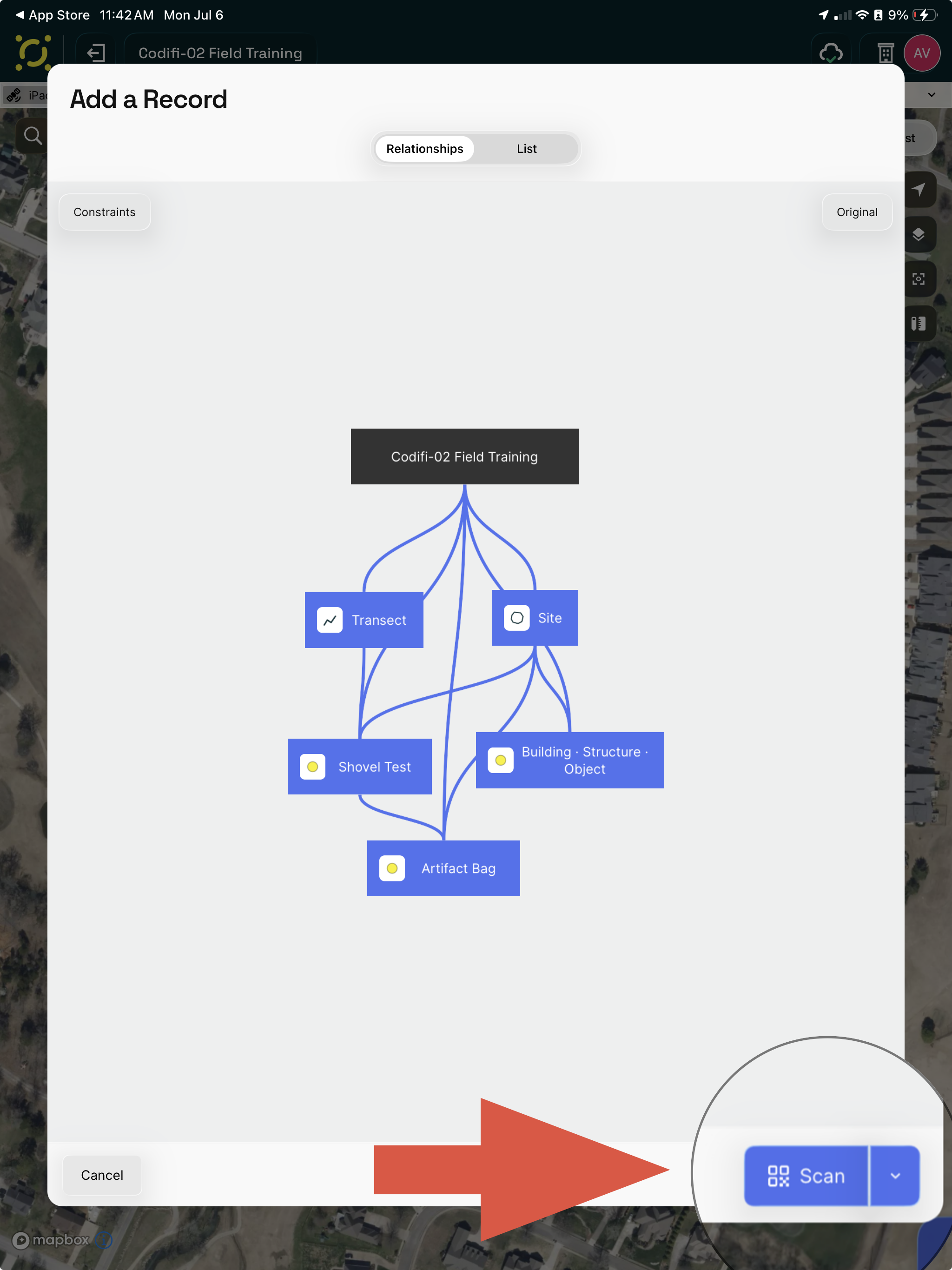
2. In the **bottom-right corner**, a **Scan** button appears whenever the Project has pre-registered Records waiting.
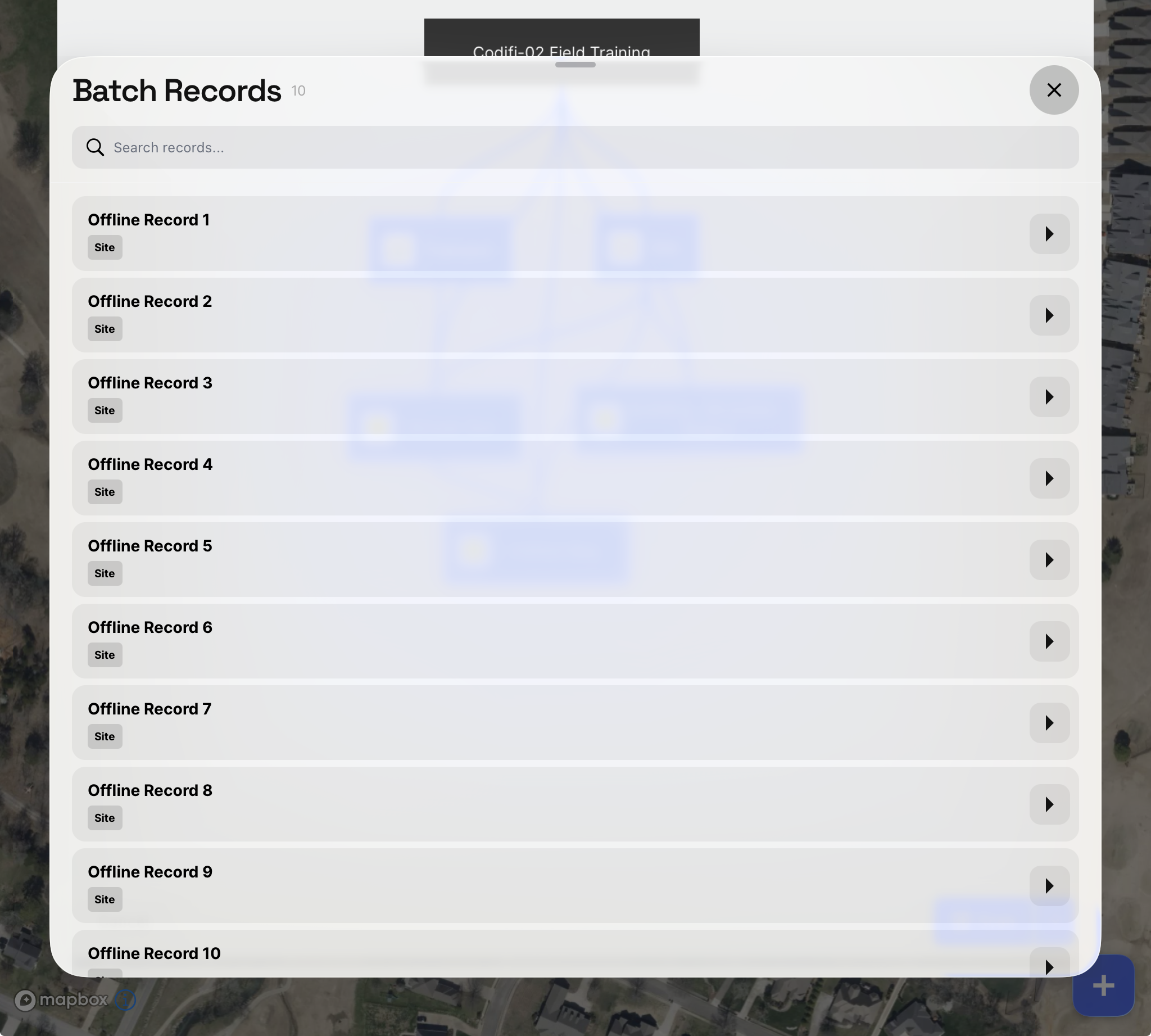
3. Tap the **arrow next to Scan** to open the **Batch Records** list — every pre-registered Record, searchable by name.
4. Every crew member selects the **same Record** — this is where the unique naming scheme from the web setup pays off.

<figure><img src="https://3544178300-files.gitbook.io/~/files/v0/b/gitbook-x-prod.appspot.com/o/spaces%2FJ8P3pqhxdFwQkIOjOUut%2Fuploads%2Fgit-blob-013e1f1fbb2d3267ae87408c04e4d7abfe26b6e8%2Fpreregistered-scan-button-add-record.png?alt=media" alt="The Add a Record screen with the Scan button highlighted in the bottom-right corner"><figcaption><p>The <strong>Scan</strong> button in the bottom-right corner of the Add a Record screen.</p></figcaption></figure>

<figure><img src="https://3544178300-files.gitbook.io/~/files/v0/b/gitbook-x-prod.appspot.com/o/spaces%2FJ8P3pqhxdFwQkIOjOUut%2Fuploads%2Fgit-blob-8d464553c2ed1a17754b1b8eb3bb4e3b4bc045a0%2Fpreregistered-batch-records-list.png?alt=media" alt="The Batch Records list showing pre-registered Records ready to select"><figcaption><p>The <strong>Batch Records</strong> list — every crew member selects the same Record by name.</p></figcaption></figure>

This path works entirely offline — the Records were already delivered to each device during the pre-departure sync.

### Path 2 — One person opens the Record, everyone else scans

1. One crew member navigates to the Record (via Path 1, or any other way).
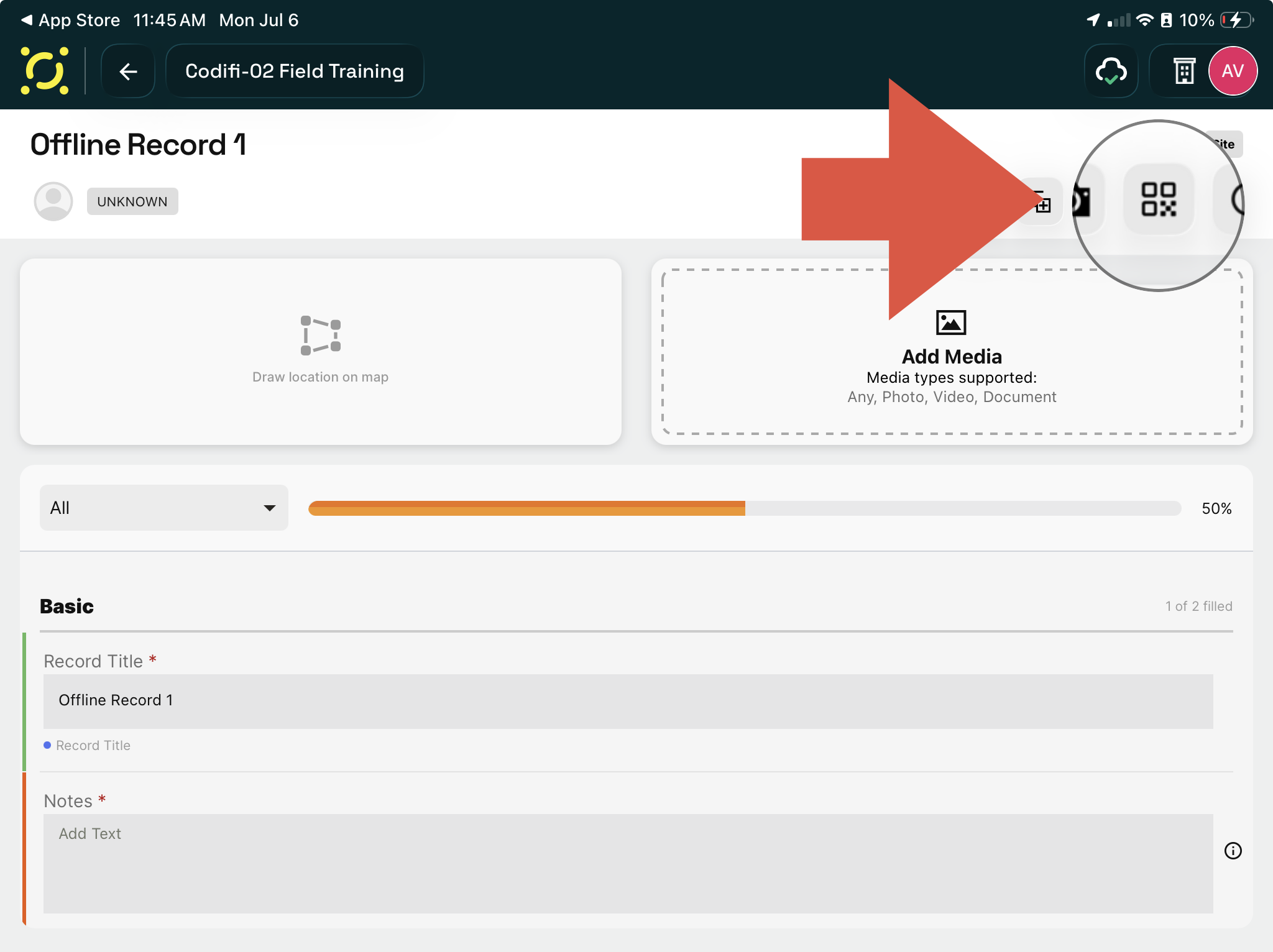
2. They tap the **QR button** in the Record's header toolbar.

   <figure><img src="https://3544178300-files.gitbook.io/~/files/v0/b/gitbook-x-prod.appspot.com/o/spaces%2FJ8P3pqhxdFwQkIOjOUut%2Fuploads%2Fgit-blob-0b4361ab498c28a93827f3fb3275f674028f1f9d%2Fpreregistered-record-qr-button.png?alt=media" alt="An open Record with the QR button highlighted in the header toolbar"><figcaption><p>The QR button in the Record's header toolbar.</p></figcaption></figure>
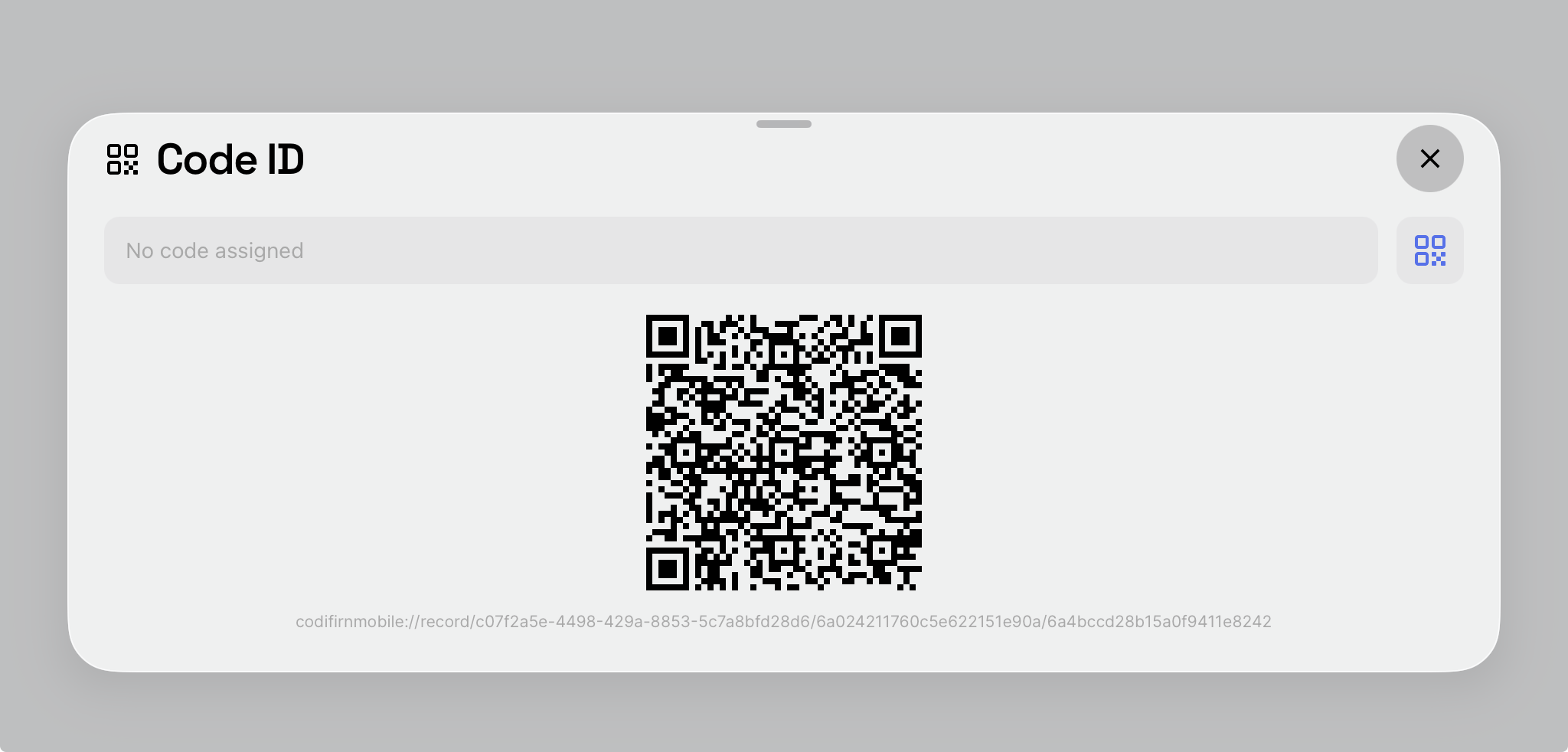
3. The **Code ID** panel opens, displaying the Record's QR code — hold the screen up for the rest of the crew.

   <figure><img src="https://3544178300-files.gitbook.io/~/files/v0/b/gitbook-x-prod.appspot.com/o/spaces%2FJ8P3pqhxdFwQkIOjOUut%2Fuploads%2Fgit-blob-7a279b72b7d88661ea706a68468aef354a5f660c%2Fpreregistered-code-id-qr.png?alt=media" alt="The Code ID panel displaying the Record&#x27;s QR code"><figcaption><p>The <strong>Code ID</strong> panel — one crew member shows this to the others.</p></figcaption></figure>
4. Each teammate opens a scanner and scans the first device's screen. There are two ways to scan:

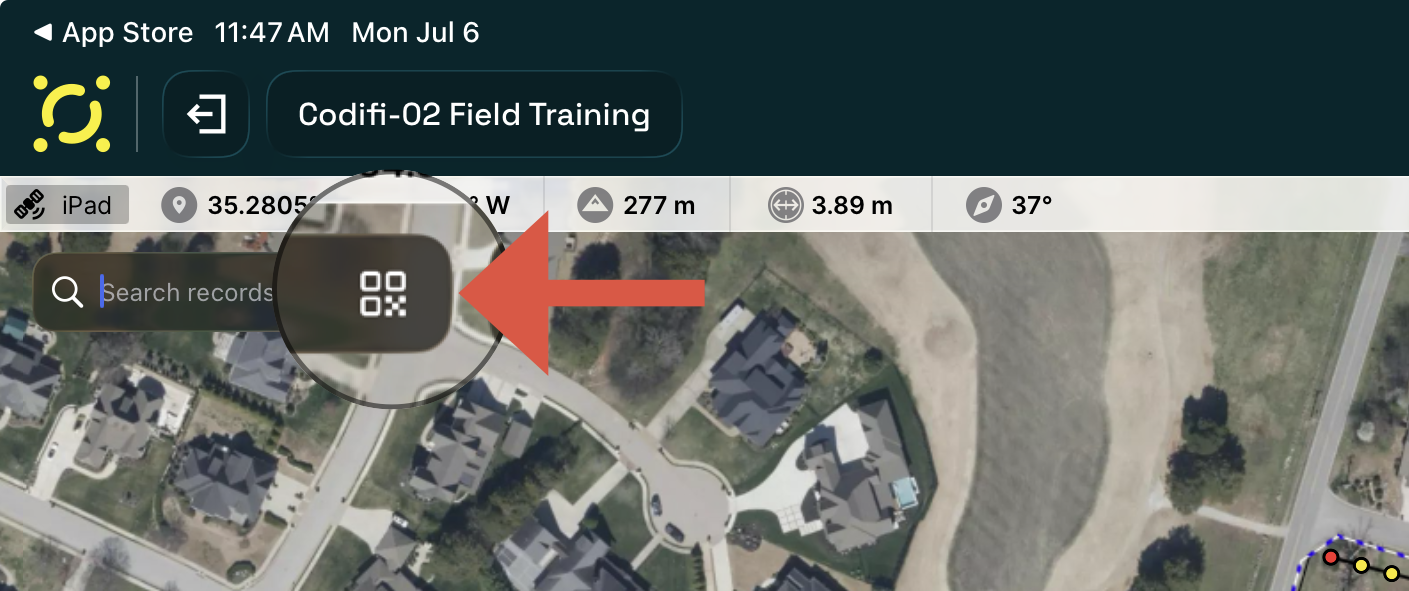
   * **From inside Codifi:** tap the **search bar** on the Records List or the Map, then tap the **QR button** inside it to open the camera scanner.
   * **With the built-in iOS Camera app:** the QR code is a deep link, so pointing the regular iPad or iPhone camera at it opens Codifi directly to that Record — no need to be inside the app first.

   <figure><img src="https://3544178300-files.gitbook.io/~/files/v0/b/gitbook-x-prod.appspot.com/o/spaces%2FJ8P3pqhxdFwQkIOjOUut%2Fuploads%2Fgit-blob-c4335f4a89e34608c96ccc38c2a3b7e35ac6161f%2Fpreregistered-search-bar-qr-scanner.png?alt=media" alt="The search bar with the QR scan button highlighted"><figcaption><p>Teammates tap the QR button in the search bar (Records List or Map) to open the scanner — or just use the iOS camera.</p></figcaption></figure>
5. Scanning takes each teammate directly to the same Record on their own device.

No printed labels, no reading names off a list — one person finds the Record, everyone else scans. This also works entirely offline, because the scan simply opens a Record that already lives on each device.

### Divide the work

With everyone on the same Record, split the documentation however suits the crew — for example:

* **Person A** captures photos and media.
* **Person B** captures the location and geometry.
* **Person C** fills in the attribute fields.

Because each person is editing *different parts* of the Record, their edits are independent and will merge cleanly at sync — no coordination needed beyond agreeing who covers what.

***

## How Everything Reconciles

While offline, each device works against its **own local copy** of the Record. Nothing travels between devices in the field — teammates will not see each other's photos, geometry, or field values until everyone syncs. That's expected, not a bug.

When connectivity returns, [Hydra](/codifi-docs/cross-platform-features/hydra.md) syncs each device's changes as individual events and merges them:

* **Edits to different things merge cleanly.** Photos from one device, geometry from another, and field values from a third all land on the same Record without conflict.
* **Edits to the&#x20;*****same field*****&#x20;resolve by most-recent-wins.** If two people edited the same field offline, the most recent edit becomes the value — and the other value is preserved in the Record's history, so nothing is silently lost.

### What happens if someone renames the Record?

The Record's **name is a field like any other**, which leads to one behavior worth knowing in advance:

> **If one person renames the Record in the field, the other offline devices keep showing the old name.** Offline devices can't see each other's edits, so a rename does not appear on teammates' screens during the day. Once everyone syncs, the rename propagates — whoever changed the name field last is the name everyone sees afterward.

Practical advice: **agree not to rename pre-registered Records mid-day.** The name is how the crew identifies the shared Record — if one device shows `STP-A-014` and another shows `STP-14 revisit`, it's easy to think you're on different Records when you're not. Save renames for after the end-of-day sync.

***

## Verifying the Merge in Record History

After everyone syncs, the Record's history is the proof that the merge worked. Open the **clock icon** on the Record to see every edit in order — for each one:

* **who** made it,
* **when**,
* **which field, photo, or geometry** changed and what the values were,
* **from which platform** (mobile / web).

You should see all crew members' contributions interleaved on the one Record: Person A's photos, Person B's geometry edits, Person C's field values. If two people did touch the same field, both edits are in the history — the older value wasn't destroyed, just superseded, and **Recall** can restore it as a new edit if the wrong one won.

Project managers can do the same review across the whole Project from [Project History](/codifi-docs/web-app/project-history.md) on the web.

See [Edit History, Recall, and Project History](/codifi-docs/mobile-app/edit-history-recall-and-project-history.md) for the full reference.

> **Screenshot placeholder:** *A Record's history panel after sync, showing interleaved edits from three different users on one Record.*

***

## Good Practices

* **Name Records so they can't be confused.** Unique, predictable names are the backbone of Path 1.
* **Sync every device after pre-registration, before departure.** Green cloud icon on every device — a Record that never reached a device can't be joined offline.
* **Agree on the division of labor up front.** Different people editing different parts of a Record never conflict.
* **Don't rename shared Records mid-day.** Renames don't propagate until sync and can make crews think they're on different Records.
* **Sync at end of day, then verify.** Once every device shows a green cloud icon, spot-check a few Records' histories to confirm everyone's work merged.

***

## See Also

* [QR Codes](/codifi-docs/mobile-app/qr-codes.md) — scanning, linking external labels, and batch QR pre-registration mechanics.
* [Hydra](/codifi-docs/cross-platform-features/hydra.md) — the offline-first sync engine doing the merging.
* [Syncing & the Cloud Icon](/codifi-docs/mobile-app/getting-in-the-field/syncing-and-the-cloud-icon.md) — how to read sync status before and after fieldwork.
* [Edit History, Recall, and Project History](/codifi-docs/mobile-app/edit-history-recall-and-project-history.md) — the audit trail used to verify the merge.