> For the complete documentation index, see [llms.txt](https://codifi-fdm.gitbook.io/codifi-docs/llms.txt). Markdown versions of documentation pages are available by appending `.md` to page URLs; this page is available as [Markdown](https://codifi-fdm.gitbook.io/codifi-docs/getting-started/creating-a-project.md).

# Creating a Project

Getting started with a new Project in Codifi is a breeze. Follow these steps to get your Project up and running!

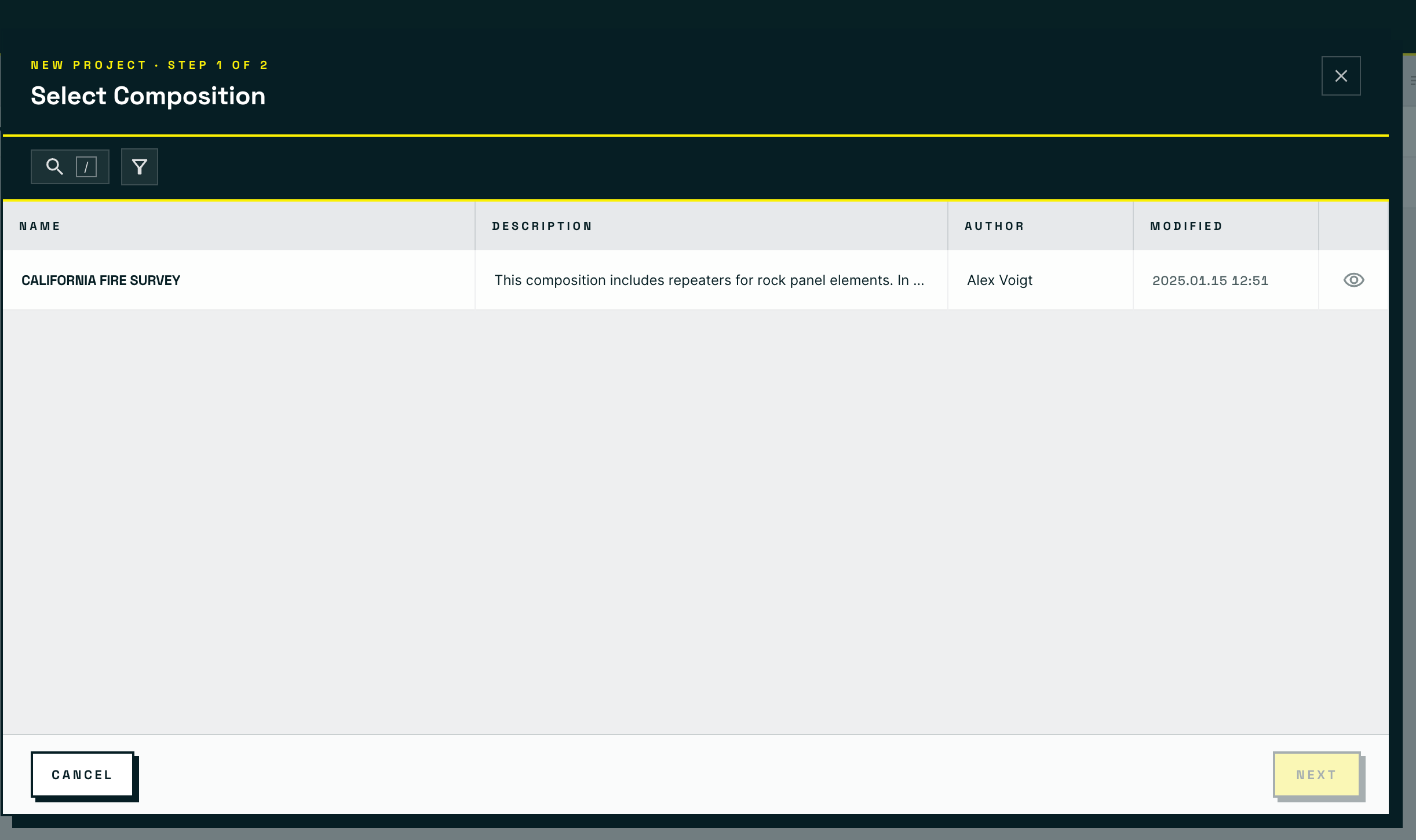
After logging into Codifi Web, you'll land on your **Projects List**. Creating a Project takes two steps: choose the Composition it is built from, then name it.

<figure><img src="https://3544178300-files.gitbook.io/~/files/v0/b/gitbook-x-prod.appspot.com/o/spaces%2FJ8P3pqhxdFwQkIOjOUut%2Fuploads%2Fgit-blob-74038528844fdb824d1f0f29008abf9ba8e18e1c%2Fnewproject-button.png?alt=media" alt="The Projects List header with the + New Project button highlighted in the top right corner"><figcaption><p>The <strong>+ New Project</strong> button sits in the top right of the Projects List.</p></figcaption></figure>

{% stepper %}
{% step %}
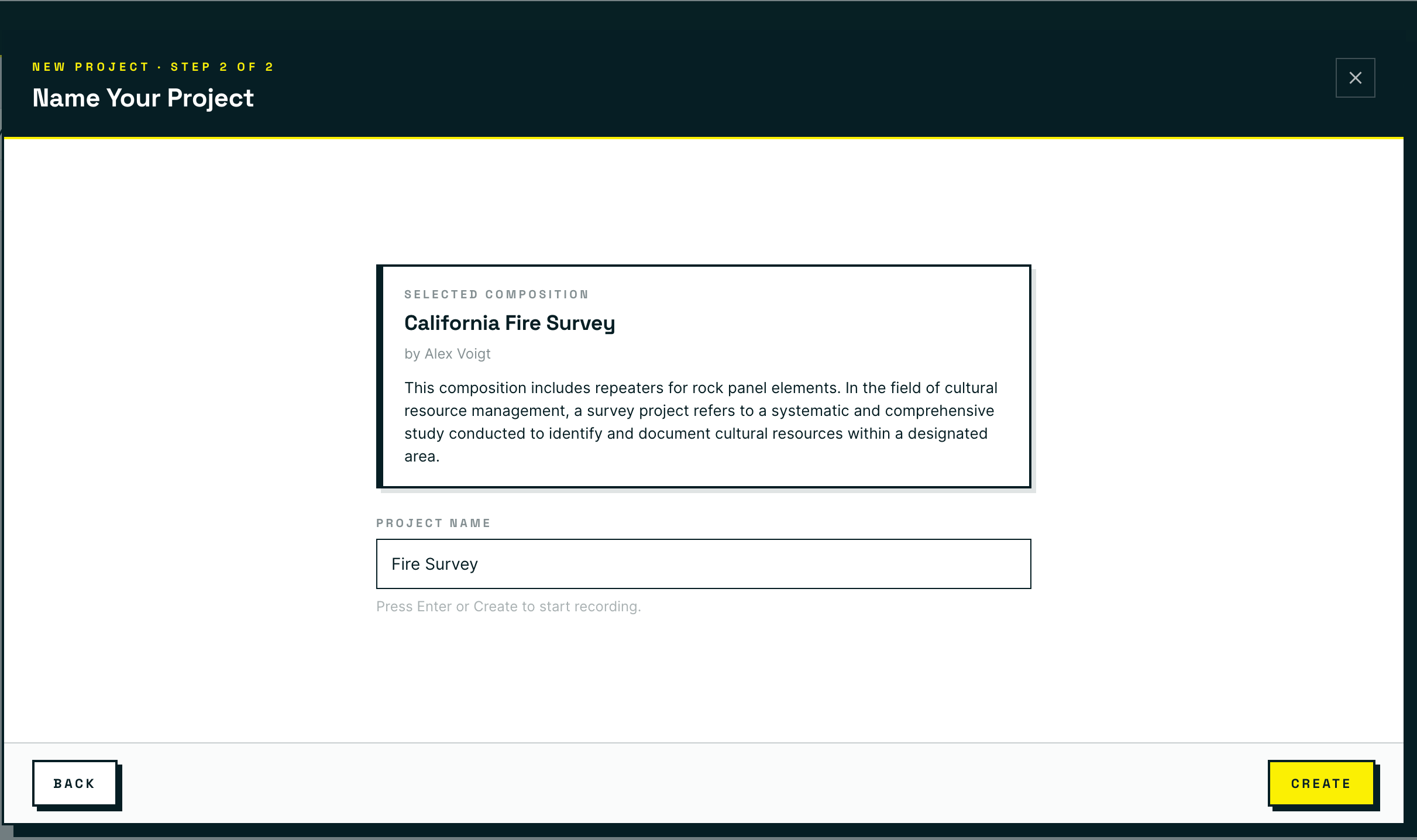
**Select a Composition.** The list shows every Composition available to your tenant, with its description, author, and when it was last modified. Click the **eye icon** at the end of a row to preview one before you commit.

<figure><img src="https://3544178300-files.gitbook.io/~/files/v0/b/gitbook-x-prod.appspot.com/o/spaces%2FJ8P3pqhxdFwQkIOjOUut%2Fuploads%2Fgit-blob-d6e518cf26a246387f5b5034c27e193ae120c86f%2Fnewproject-step-1-select-composition.png?alt=media" alt="Step 1 of 2, Select Composition, showing a searchable list of Compositions with name, description, author, and modified columns"><figcaption><p>Step 1 of 2. <strong>Next</strong> stays dimmed until you select a row.</p></figcaption></figure>
{% endstep %}

{% step %}
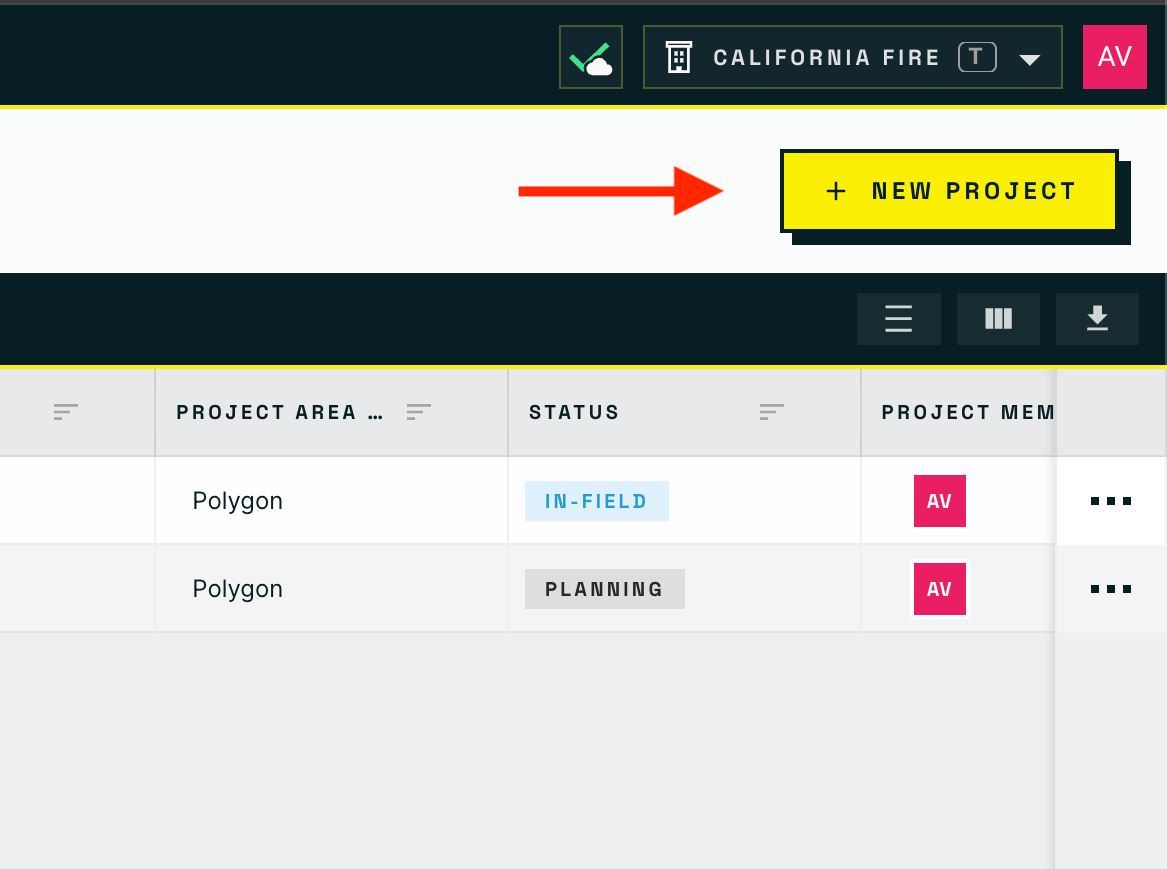
**Name your Project.** The Composition you picked is shown back to you to confirm, then type a name and press **Create**.

<figure><img src="https://3544178300-files.gitbook.io/~/files/v0/b/gitbook-x-prod.appspot.com/o/spaces%2FJ8P3pqhxdFwQkIOjOUut%2Fuploads%2Fgit-blob-379cefbe6a82db978715181e6ca51bb0f19b8af2%2Fnewproject-step-2-name-project.png?alt=media" alt="Step 2 of 2, Name Your Project, showing the selected Composition summary above a Project Name field and a Create button"><figcaption><p>Step 2 of 2. <strong>Back</strong> returns to the Composition list if you picked the wrong one.</p></figcaption></figure>
{% endstep %}
{% endstepper %}

If none of the existing Compositions fit, you can **create a new one in your Library** first — see [Composition Builder](/codifi-docs/web-app/composition-builder.md).

***

## Naming Your Project

Project names appear everywhere — in your Projects List, on every Record, in reports, in exports, and in the mobile app sidebar. A few minutes of thought here pays back across the whole Project.

* **Be specific.** "Camp County Highway 49 Survey — Spring 2026" beats "Phase One" or "Highway Project."
* **Include the year or season** if your tenant runs many Projects per year. Field staff scroll Project lists more than you'd guess; date-anchored names sort and search well.
* **Avoid abbreviations only your team knows.** Clients, reviewers, and field crews from other offices may all see the Project name.
* You can rename a Project later — it doesn't break Records, exports, or syncs — but the new name takes a moment to propagate to mobile devices.

***

## What Happens When You Click Create

Codifi creates the Project and drops you on its **Project Settings** page. From there, you'll usually want to:

1. **Add team members.** By default, only you (and tenant-wide admins like Super Admin and Company Admin) can see the Project. Open [Project Members](/codifi-docs/cross-platform-features/project-members.md) to add the rest of your crew.
2. **Set up the map.** Walk through [Map Setup & Offline Areas](/codifi-docs/web-app/map-setup-and-offline-areas.md) — draw a Project Map Extent, add any Map Overlays you have, and create at least one Offline Area for the field.
3. **Verify the Composition's data structure.** Click around the form preview (or create a single test Record) to confirm archetypes, fields, and required values look right. If something's off, the fix happens in the Library — not in the Project.

For the full happy-path walkthrough — login through ready-for-field — see the [Web App overview](/codifi-docs/web-app/web-app.md), which covers everything from Composition authoring to map setup to GIS exports.

***

## Previewing a Composition Before You Pick It

If you're not sure which Composition to pick, click the **eye icon** at the end of the Composition's row to open the Composition Preview. The preview shows:

* The **archetype hierarchy** — which Records can be parents/children of which
* The **fields and sections** on each archetype
* **Required fields** (marked)
* **Drop Down options** for each value list
* Any **calculated fields and visibility rules**

This is the fastest way to confirm a Composition fits your Project before you commit. If you find issues, the Composition author can fix them in the Library before you create the Project.

***

## Sorting and Filtering Compositions

The Select Composition modal supports sorting and filtering for tenants with many Compositions:

* **Sort by name** for alphabetical order
* **Sort by last used** to find Compositions you've used recently
* **Sort by active Projects** to see what your tenant uses most

Use the search field at the top of the modal to filter by Composition name.

***

## See Also

* [Project Members](/codifi-docs/cross-platform-features/project-members.md) — adding teammates after the Project is created
* [Map Setup & Offline Areas](/codifi-docs/web-app/map-setup-and-offline-areas.md) — drawing the Project extent, adding overlays, pre-staging offline areas for crews
* [Roles-Based Access Controls (RBAC)](/codifi-docs/cross-platform-features/roles-based-access-controls-rbac.md) — how Project visibility actually works