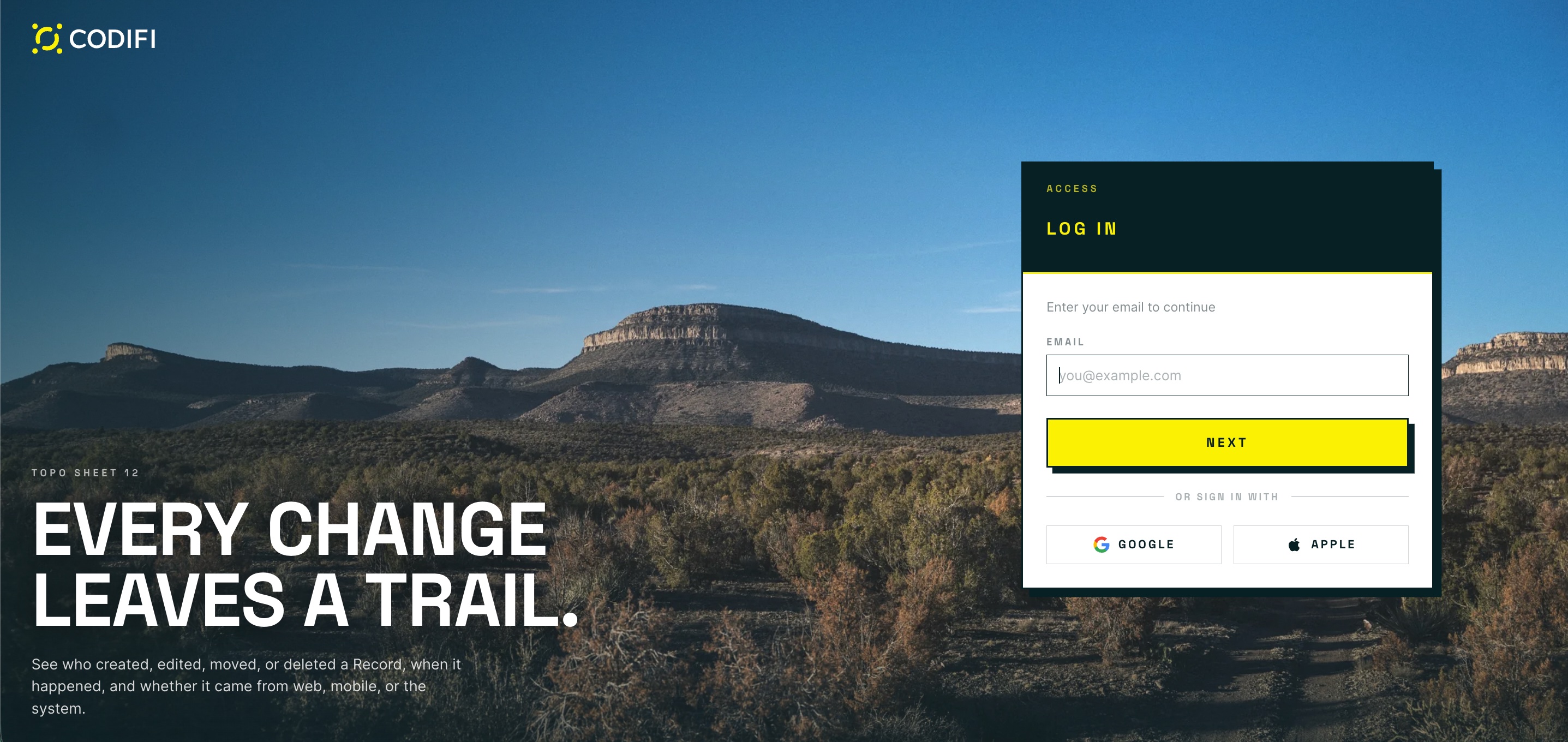
> For the complete documentation index, see [llms.txt](https://codifi-fdm.gitbook.io/codifi-docs/llms.txt). Markdown versions of documentation pages are available by appending `.md` to page URLs; this page is available as [Markdown](https://codifi-fdm.gitbook.io/codifi-docs/getting-started/how-to-access-codifi.md).
# How to Access Codifi
### How to Access the Web App
1. **Create an Account:** After receiving an email invitation from your team’s Admin, use a web browser and follow instructions to set up your account and password.
2. **Login:** Head to and use your newly created credentials to log into your account.
{% hint style="info" %}
Codifi's web app can be accessed at any time by heading to . Please bookmark this link for easy access.
{% endhint %}
### How to Access the Codifi Mobile App
1. Follow all the steps for accessing the Codifi Web App above.
2. Once your account is created, head to the Apple App Store and search for ‘[Codifi FDM](https://apps.apple.com/app/id6447903066)’
3. After downloading the Codifi App, use your newly created credentials to log in.
{% hint style="info" %}
Please note that Codifi FDM Mobile is only available in the Apple App Store.
{% endhint %}
***
## Signing In
As of v3.3, signing in starts with your **email address**. Codifi checks how your account is set up and takes you straight to the right step, so you no longer have to know in advance which method your organization uses.
| Method | When you will see it |
| ----------------------------------------- | -------------------------------------------------------------------------------------------------- |
| **Password** | Your account uses a Codifi password. Enter it as you always have. |
| **Your organization's identity provider** | Your organization has single sign-on configured. Codifi hands you to your provider and back again. |
| **Apple** | Your account is linked to an Apple ID. |
| **Google** | Your account is linked to a Google account. |
Single sign-on now returns you to the page you started from rather than dropping you on the dashboard.
Enter your email first. Codifi then shows only the sign-in methods your account actually has.
***
## Multi-Factor Authentication
Accounts can be protected with multi-factor authentication. Whether it is available to you depends on how your organization has been set up, so check with your Administrator if you do not see it.
Once it is enabled:
1. You set it up the first time you sign in after it is switched on, by scanning a code with an authenticator app.
2. Every later sign-in asks for a six digit code from that app.
{% hint style="info" %}
**Lost your phone?** Multi-factor authentication has self-service reset. You do not need to raise a support ticket to get back in, and your Administrator does not need to do anything.
On the screen that asks for your six digit code, choose **Lost your device? Reset MFA**. Codifi emails you a link, and once you confirm it you set up a new authenticator the next time you sign in.
That link lives on the code screen, which you reach after entering your email and password. If you have forgotten your password as well, reset the password first and the MFA reset will be waiting for you.
{% endhint %}
***
## For Organizations Evaluating Codifi
If your team already manages identity centrally, Codifi can sit behind it. We support single sign-on through **Microsoft Entra** and **Azure**, as well as Apple and Google accounts, so your staff use the credentials they already have and your administrators keep control of access from one place.
If that is something you want set up for your organization, get in touch with us and we will walk you through it.