> For the complete documentation index, see [llms.txt](https://codifi-fdm.gitbook.io/codifi-docs/llms.txt). Markdown versions of documentation pages are available by appending `.md` to page URLs; this page is available as [Markdown](https://codifi-fdm.gitbook.io/codifi-docs/mobile-app/getting-in-the-field/managing-projects-on-your-device.md).

# Managing Projects on Your Device

Being a member of a Project and having that Project on your device used to be the same thing. In v3.3 they are separate. You keep access to every Project you belong to, and you choose which ones are actually downloaded.

This is the change most people will notice first after upgrading, and it exists because storage was becoming a real problem for the photo-heavy offices.

***

## Membership and Storage Are Now Different

|                        | What it means                                                              | Who controls it      |
| ---------------------- | -------------------------------------------------------------------------- | -------------------- |
| **Project membership** | You have access to the Project and can open it on the web app at any time. | Your Project Manager |
| **On your device**     | The Project is downloaded and available offline in the field.              | You                  |

Offloading a Project removes it from your device. It does **not** remove you from the Project, change your permissions, or affect anyone else.

{% hint style="info" %}
**One list, all your tenants.** The separate tenant selector is gone. The Projects screen now shows everything you have access to across every tenant you belong to, with a tenant label on each entry, so there is no longer a step where you pick an organization before you can see your work.
{% endhint %}

***

## The Ten Project Limit

A device carries **up to ten Projects** at a time.

Ten is a deliberate number rather than a technical ceiling. Carrying fewer Projects means less to sync, less to search, faster startup, and a great deal of storage handed back to your device.

{% hint style="info" %}
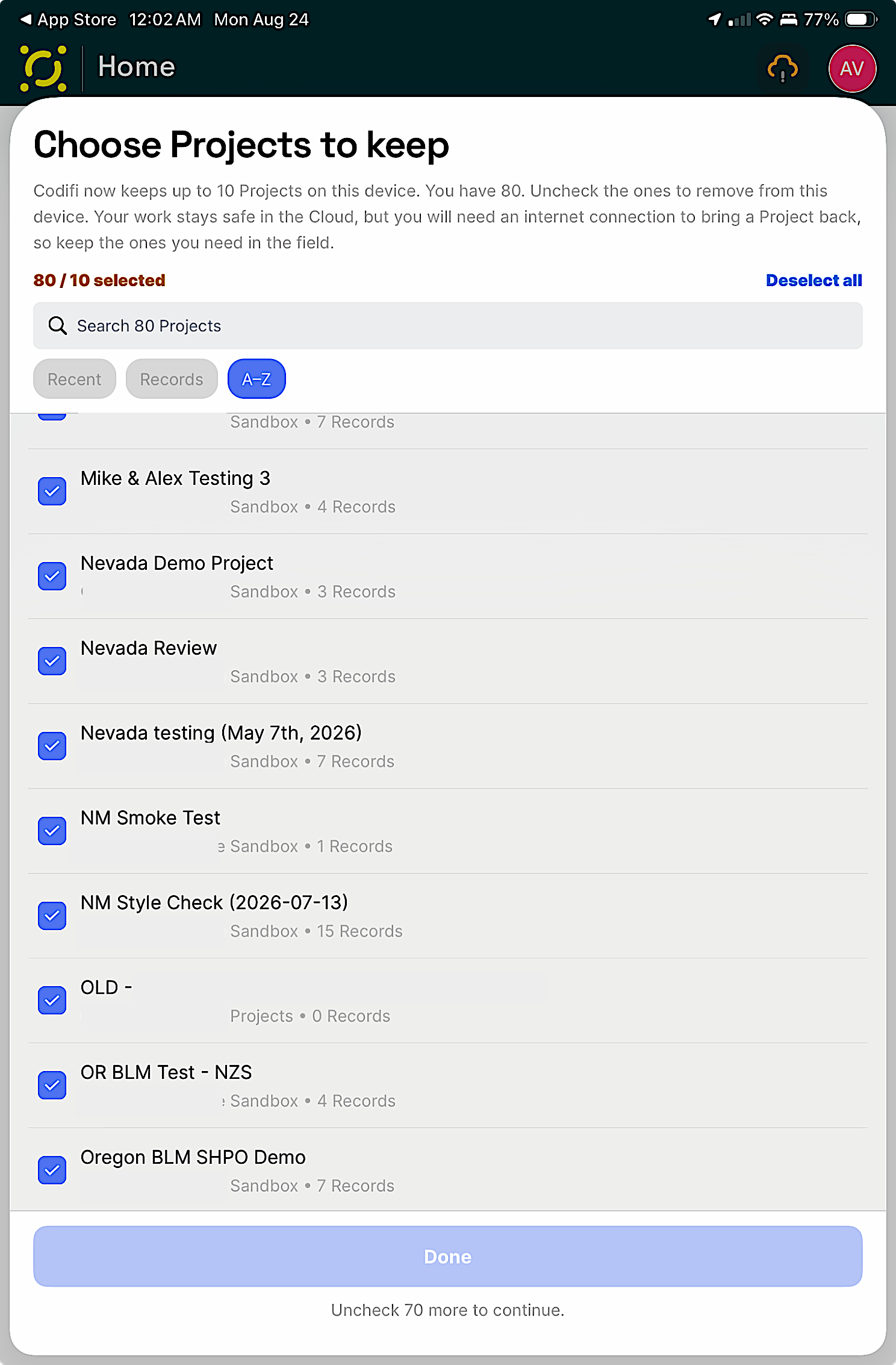
**Upgrading with more than ten Projects?** The first time you open v3.3, Codifi walks you through choosing which ones to keep. The list can be searched and sorted, everything you do not keep is offloaded safely, and you stay a member of all of them. It is a one-time step.
{% endhint %}

<figure><img src="https://3544178300-files.gitbook.io/~/files/v0/b/gitbook-x-prod.appspot.com/o/spaces%2FJ8P3pqhxdFwQkIOjOUut%2Fuploads%2Fgit-blob-d8cebe5686cb69982176353a7d701d00f791e510%2Fmanaging-projects-choose-to-keep.png?alt=media" alt="The Choose Projects to keep screen showing 80 of 10 selected in red, a search field, Recent, Records, and A-Z sort chips, a checklist of Projects with their tenant and Record count, and a disabled Done button reading Uncheck 70 more to continue"><figcaption><p>The first launch on v3.3. The counter turns red while you are over the limit and <strong>Done</strong> stays disabled until you are under it. Sort by <strong>Recent</strong> or <strong>Records</strong> to find what is actually worth keeping.</p></figcaption></figure>

***

## Offloading a Project

Offload a Project when you have finished fieldwork on it and want the space back.

1. Go to the **Projects** screen.
2. Tap the **gear** on the Project's card.
3. Choose **Offload**.
4. Confirm.

The Project leaves your device. Its slot opens up for something else.

{% hint style="success" %}
**Offloading is always data-safe.** Any work you have not yet synced uploads first, and nothing is removed from the device until the Cloud has confirmed it. You cannot lose data by offloading, even by accident.
{% endhint %}

***

## Syncing a Project Back

1. Go to the **Projects** screen.
2. Tap an **empty slot**, or the **Sync a Project** button.
3. Pick the Project from the list. Search, sort, and tenant labels are there to help if you belong to a lot of them.
4. Wait for it to download.

Everything comes back: Records, media, Overlays, and offline map areas.

{% hint style="warning" %}
**Sync on Wi-Fi the night before, not at the trailhead.** A Project with offline map areas and rasters can be hundreds of megabytes. Downloading it over a weak signal at the start of the day wastes time and can leave you with partial map coverage.
{% endhint %}

***

## Offload, Consolidate, or Free Up Space?

Three tools, three different jobs.

| Use               | When                                                    | What happens                                                                       |
| ----------------- | ------------------------------------------------------- | ---------------------------------------------------------------------------------- |
| **Offload**       | You are done with a Project for now                     | The whole Project leaves the device. You stay a member and can re-sync it later.   |
| **Consolidate**   | You are coming back to a Project after a while away     | The Project stays, but its local database is rebuilt and old logs are cleared out. |
| **Free Up Space** | You need room quickly and are still working the Project | Downloaded media is cleared from the device. Records and forms stay.               |

{% hint style="info" %}
**Consolidate before returning to an old Project.** If you have not opened a Project in a few weeks, running Consolidate rebases the local database and clears accumulated logs. It takes a few minutes and it noticeably improves how the Project performs in the field.
{% endhint %}

***

## Common Questions

<details>

<summary>Where did my Project go?</summary>

If a Project is no longer on your device, either it was offloaded, or you were asked to choose ten during the upgrade and this one was not among them. You are still a member. Go to the Projects screen and sync it back from an empty slot.

</details>

<details>

<summary>Why is a Project I belong to not in my list?</summary>

The Projects screen shows what is on your device. Tap Sync a Project to see everything you have access to, including Projects across other tenants you belong to.

</details>

<details>

<summary>Can I offload with no internet connection?</summary>

Yes. Offloading works offline. Any unsynced work stays safely on the device and uploads as soon as you have a connection, even though the rest of the Project has been removed.

</details>

<details>

<summary>Does offloading affect my crew?</summary>

No. It only changes what is on your device.

</details>

***

## Related

* [Syncing & the Cloud Icon](/codifi-docs/mobile-app/getting-in-the-field/syncing-and-the-cloud-icon.md)
* [Free Up Space](/codifi-docs/mobile-app/capturing-photos-and-media/free-up-space.md)
* [Nearby Sync](/codifi-docs/mobile-app/getting-in-the-field/nearby-sync.md)
