> For the complete documentation index, see [llms.txt](https://codifi-fdm.gitbook.io/codifi-docs/llms.txt). Markdown versions of documentation pages are available by appending `.md` to page URLs; this page is available as [Markdown](https://codifi-fdm.gitbook.io/codifi-docs/mobile-app/getting-in-the-field/nearby-sync.md).

# Nearby Sync

Nearby Sync lets devices working the same Project share their work **directly with each other**, with no internet connection involved. If one person records a feature, the others see it within moments, while everyone is still standing in the same place.

It is built for the situation field crews are in most of the time: several people spread across a site, no cell service, and nobody willing to wait until the drive home to find out what everyone else recorded.

***

## What You Need

Nearby Sync uses your device's Wi-Fi and Bluetooth radios to find other devices directly. It does **not** use the internet, and it does not need a router, a hotspot, or a network to join.

| Requirement                             | Why                                                                                                                                                                                              |
| --------------------------------------- | ------------------------------------------------------------------------------------------------------------------------------------------------------------------------------------------------ |
| **Wi-Fi switched on**                   | Carries the actual data between devices. The radio must be on, but it does not need to be connected to anything.                                                                                 |
| **Bluetooth switched on**               | Used to discover the devices around you.                                                                                                                                                         |
| **Codifi v3.3 or later**                | Every device taking part has to be on 3.3 or newer. A device still on an older version will not appear.                                                                                          |
| **Same Project, with its full history** | Both devices must have the Project downloaded, history included. See [Projects You Had Before Upgrading](#projects-you-had-before-upgrading).                                                    |
| **The Project open on screen**          | Nearby Sync runs only while you are inside the Project. It pauses when you go back to the Projects list, or when the app goes to the background, and picks up again when you reopen the Project. |

Both radios have to stay on for the whole session, not just while you switch the feature on. Codifi will not let you enable Nearby Sync unless both are already on.

{% hint style="warning" %}
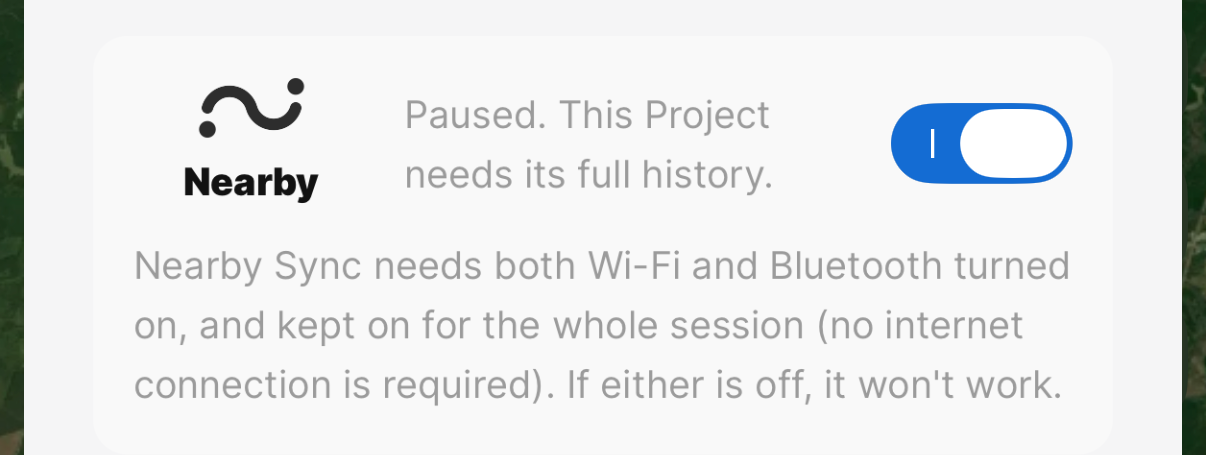
**A Project needs its full history before it can take part.** If it does not have it, the Nearby row reads **Paused. This Project needs its full history**, and nothing transfers even with the toggle on and both radios up.

<img src="https://3544178300-files.gitbook.io/~/files/v0/b/gitbook-x-prod.appspot.com/o/spaces%2FJ8P3pqhxdFwQkIOjOUut%2Fuploads%2Fgit-blob-23064a630044bb11930f835ffac9422549dfc4a3%2Fnearby-paused-needs-history.png?alt=media" alt="The toggle stays on. It is the Project that is not ready, not the feature." data-size="original">

Tap the **Nearby** row for the full explanation and the fix.
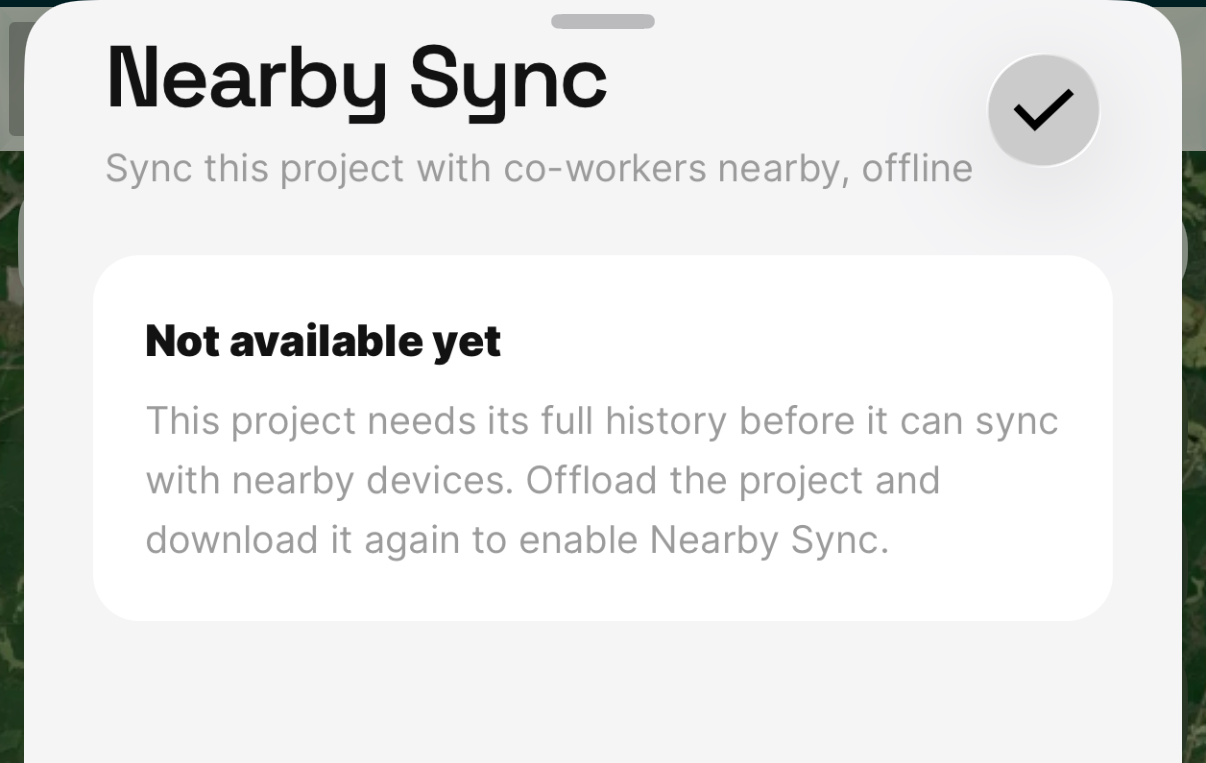
<img src="https://3544178300-files.gitbook.io/~/files/v0/b/gitbook-x-prod.appspot.com/o/spaces%2FJ8P3pqhxdFwQkIOjOUut%2Fuploads%2Fgit-blob-c9aefe4c75a98a2c539b7afb2ee0061eed0b37f7%2Fnearby-not-available-yet.png?alt=media" alt="Offload the Project and download it again. The re-download brings the history with it." data-size="original">

See [Projects you had before upgrading](#projects-you-had-before-upgrading) below, which is where this comes up most.
{% endhint %}

{% hint style="info" %}
**Airplane mode works.** Switch on airplane mode, then switch Wi-Fi and Bluetooth back on. That is a perfectly good setup for a day in the field, and it saves battery that would otherwise go into hunting for a cell signal.
{% endhint %}

***

## Turning It On

Nearby Sync is enabled **per Project**, so you can leave it on for the site you are working and off everywhere else.

1. Open the Project.
2. Tap the **Cloud icon** in the top navigation bar to open the sync sheet.
3. Open **Nearby Sync**.
4. Switch it on.

Leave it on and it comes back the next time you open that Project.

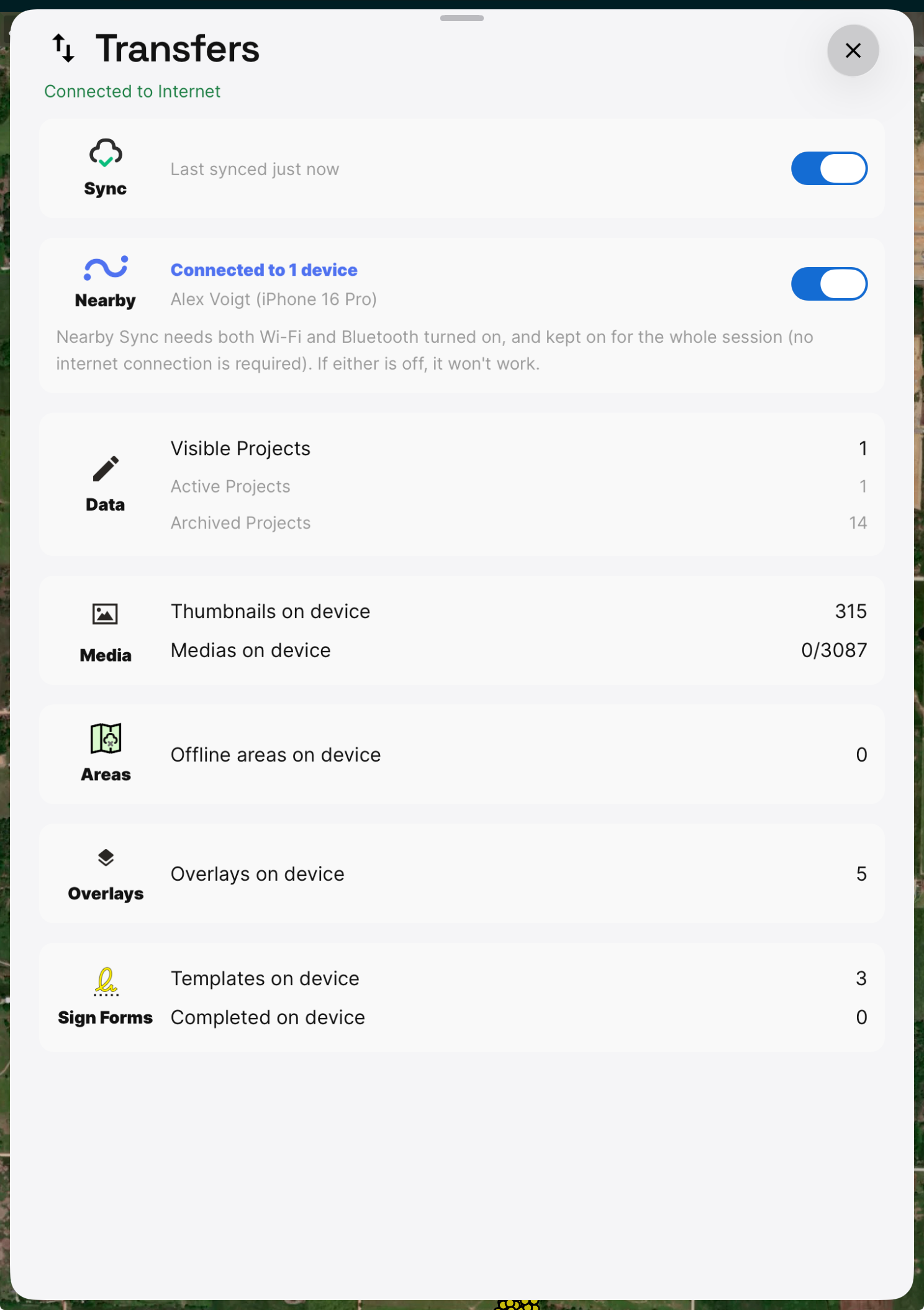
<figure><img src="https://3544178300-files.gitbook.io/~/files/v0/b/gitbook-x-prod.appspot.com/o/spaces%2FJ8P3pqhxdFwQkIOjOUut%2Fuploads%2Fgit-blob-9c075aef777118e5af7edbca4b28cd825edfe438%2Fnearby-transfers-sheet.png?alt=media" alt="The Transfers sheet with Sync at the top and a Nearby row reading Connected to 1 device, naming the connected device, above counts for Data, Media, Areas, Overlays, and Sign Forms"><figcaption><p>The <strong>Transfers</strong> sheet. <strong>Nearby</strong> sits directly beneath Cloud <strong>Sync</strong>, and names the devices you are connected to. The requirements line under it is a live reminder, not a one-time notice.</p></figcaption></figure>

***

## Reading the Status Indicator

Once Nearby Sync is on, an indicator appears in the navigation bar next to the Cloud icon. It tells you what the feature is doing right now.

| Indicator                   | What it means                                                                   |
| --------------------------- | ------------------------------------------------------------------------------- |
| **Not shown**               | Nearby Sync is off for this Project.                                            |
| **Searching**               | Nearby Sync is on and looking for other devices. Nobody is connected yet.       |
| **Connected, with a count** | You are connected to that many nearby devices, and work is flowing between you. |
| **Transferring**            | Data is moving right now. Stay in range until it settles.                       |

Tap the indicator at any time to see exactly who you are connected to.

<figure><img src="https://3544178300-files.gitbook.io/~/files/v0/b/gitbook-x-prod.appspot.com/o/spaces%2FJ8P3pqhxdFwQkIOjOUut%2Fuploads%2Fgit-blob-eede320e33cc5968ee4b2ff8ae4eb6944d2fbf90%2Fnearby-navbar-connected.png?alt=media" alt="The navigation bar showing a cloud icon with a green check beside a Nearby icon with the number one"><figcaption><p>Connected to one device. The Cloud icon and the Nearby indicator sit side by side, so you can see Cloud and device-to-device sync at a glance.</p></figcaption></figure>

***

## What Transfers, and What Does Not

This is the part worth reading twice, because it is the one thing that can cost you data if it is misunderstood.

**Transfers over Nearby Sync:**

* Records, including their Fields, locations, and relationships
* Record status and assignment changes
* Photo **previews**, so you can see what your teammates captured

**Does not transfer over Nearby Sync:**

* **Full resolution photos.** The originals stay on the device that took them until that device uploads them to the Cloud.

{% hint style="danger" %}
**Never rely on one teammate to sync for everybody.** Because full resolution photos stay on the device that captured them, a single device syncing to the Cloud at the end of the day does **not** carry everyone else's photography. Every device that took photos has to reach the Cloud itself. Check that each device shows a green Cloud icon before anyone considers the day closed out.
{% endhint %}

***

## Using It in the Field

There is nothing to manage once it is on. Devices find each other, exchange what they have, and carry on. A few things worth knowing:

* **Range depends on the ground.** Open terrain gives you more than a wooded draw or a deep trench. If a device drops out, walking back toward the group re-establishes it.
* **Work is never lost when a device drops out.** Everything stays on the device that recorded it and syncs the next time the devices are in range, or when that device reaches the Cloud.
* **It works alongside normal syncing.** If somebody wanders into cell service, their device uploads to the Cloud as usual, and keeps sharing with the crew at the same time.
* **Conflicts resolve the same way they always have.** Nearby Sync uses the same engine as Cloud syncing, so two people editing the same Record behaves exactly as it does today.

***

## Projects You Had Before Upgrading

Nearby Sync needs a Project's **full history** on the device. Projects that were downloaded before v3.3 were stored without it, so anything that has been sitting on your device since before the upgrade will not join a Nearby session until you refresh it.

The fix is the one the app itself suggests: **offload the Project and download it again.** The fresh download brings the history with it, and Nearby Sync becomes available for that Project.

{% hint style="warning" %}
**Do this before you leave for the field.** Bringing a Project back needs an internet connection. Work through them at the office or on Wi-Fi, confirm each one shows **Searching** or **Connected** rather than **Paused**, and then head out.
{% endhint %}

Anything downloaded fresh on v3.3 or later already carries its history, so this is a one-time cleanup after upgrading rather than something you will keep running into.

***

## Troubleshooting

<details>

<summary>The sheet says "Paused. This Project needs its full history"</summary>

The Project does not have its full history on this device, which Nearby Sync needs before it can share anything. The toggle can be switched on and it will still not transfer.

**Offload the Project and download it again.** Open the Projects screen, tap the gear on the Project's card, choose **Offload**, then download it back. Any unsynced work uploads before the offload, so nothing is lost — but you do need an internet connection to bring it back, so do this before you leave for the field.

</details>

<details>

<summary>The indicator says Searching and never connects</summary>

Check that both devices are running **Codifi v3.3 or later**. A device on an older version cannot take part and will never appear.

Then check that both devices have **the same Project open** and that Nearby Sync is enabled on both, since it is a per-Project setting.

If a radio was switched off after you enabled the feature, switch it back on. Both Wi-Fi and Bluetooth need to stay on for the whole session.

Finally, confirm Codifi has **Local Network** permission on both devices, under Settings, Codifi, Local Network.

</details>

<details>

<summary>A teammate's Records are not appearing</summary>

Confirm the indicator shows Connected rather than Searching on both devices, and that you are close enough to each other. If you have only just connected, give it a moment to finish the first exchange.

</details>

<details>

<summary>Photos look low quality</summary>

That is expected. Photos travel between devices as previews. The full resolution original stays on the device that took it until that device uploads to the Cloud.

</details>

***

## Related

* [Syncing & the Cloud Icon](/codifi-docs/mobile-app/getting-in-the-field/syncing-and-the-cloud-icon.md)
* [Managing Projects on Your Device](/codifi-docs/mobile-app/getting-in-the-field/managing-projects-on-your-device.md)
* [Hydra](/codifi-docs/cross-platform-features/hydra.md)