> For the complete documentation index, see [llms.txt](https://codifi-fdm.gitbook.io/codifi-docs/llms.txt). Markdown versions of documentation pages are available by appending `.md` to page URLs; this page is available as [Markdown](https://codifi-fdm.gitbook.io/codifi-docs/mobile-app/mapping-locations/gps-and-live-data/live-data-bar-and-widgets.md).
# Live Data Bar & GPS Widgets
## The Live Data Bar
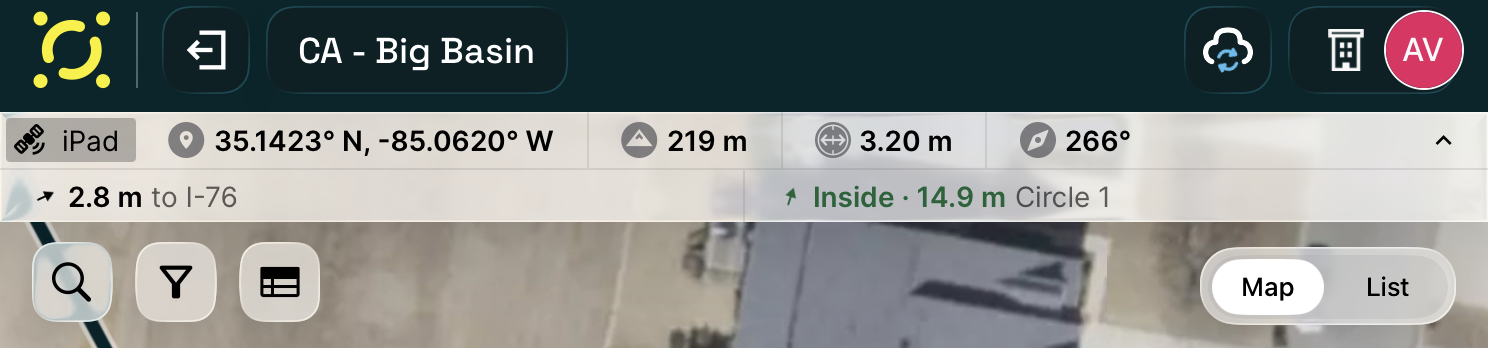
The bar at the top of the map screen shows real-time GPS information at a glance.
| Section | What It Shows | Tap to... |
| --------------- | ------------------------------ | --------------------------- |
| **GPS Source** | Which GPS device is active | Open External Devices panel |
| **Coordinates** | Your current position | Cycle formats: DD, DMS, UTM |
| **Elevation** | Height above sea level | Toggle meters / feet |
| **Accuracy** | GPS precision (lower = better) | Toggle meters / feet |
| **Heading** | Direction you're facing | Switch degrees / cardinal |
**Accuracy guidelines:** Under 5m = good for most work. Under 2m = great for detail. Under 0.05m = survey-grade.
{% hint style="info" %}
**Tip:** Before capturing a location, glance at the accuracy number. If it seems higher than normal, wait a few seconds for the GPS to settle — especially near buildings, tree cover, or in valleys.
{% endhint %}
### Signal Freshness
The GPS source label background color tells you about signal freshness:
| Color | What It Means |
| --------------- | ----------------------------------------------------------- |
| **Dark/Normal** | Good signal — data is fresh (< 3 seconds old) |
| **Orange** | Signal getting stale (3-10 seconds) — wait a moment |
| **Red** | Signal is very stale (> 10 seconds) — check your GPS device |
***
## GPS Widgets
Tap the expand control on the live data bar to reveal a second row of configurable spatial widgets. These give field teams live awareness of distances, bearings, and spatial relationships as they move — designed for transect surveys, grid spacing, boundary compliance, and any workflow where your position relative to other features matters.
The live data bar with GPS widgets expanded — showing a "Distance to Record" widget (1.9m to I-76) and an "Inside/Outside" widget (Inside, 16.1m from Circle 1)
### Widget Types
#### Distance to Record
Live distance from your current position to a target Record. Use it to navigate back to a previously created Record or maintain consistent spacing between new Records.
#### Offset from Line
Your perpendicular distance from a transect or reference line. Positive and negative values indicate which side of the line you're on. Essential for transect-based surveys where staying on or near a line matters.
#### Position Along Line
How far along a reference line you are from its starting point. Track your progress along a transect or corridor without checking the full map.
#### Spacing Check
Distance between your current position and the most recently created Record, with configurable **pass/fail thresholds**. The widget turns green when spacing is within tolerance and red when outside it. Ideal for grid surveys or any workflow where consistent Record spacing is required.
#### Inside/Outside
Whether you are currently inside or outside a polygon boundary — such as a Project area or a specific annotation. Useful for staying within a study boundary or detecting when you cross a perimeter.
### Configuring Widgets
Each widget can target different features depending on what you need to track:
| Target Type | Description |
| --------------------------- | -------------------------------------------------------------------------------------------------------------------------------------------------------------------------------------------------------------------------------------------------------------------------------------------------------------------------------------------------------------------------------------------------------------------------- |
| **Last Created** | Automatically targets the most recently created Record |
| **Parent of Last Created** | Targets the parent Record of your most recent creation |
| **Last Created Annotation** | Automatically targets the most recently drawn annotation matching the widget's geometry type. Draw a new transect line and your Offset-from-Line widget re-points to it instantly — no reconfiguration between transects. Each widget only follows the geometry it needs (line widgets follow new lines; containment widgets follow new polygons), so drawing an unrelated annotation won't disrupt it. *Added in v3.1.5.* |
| **Specific Record** | Pick a Record by archetype, then select the exact Record |
| **Project Area** | The boundary of the current Project |
| **Annotation** | A specific line or polygon annotation drawn on the map |
### Display
Widgets with a directional component show a **smooth-rotating compass arrow** indicating bearing to the target — giving you an at-a-glance sense of direction without interpreting raw degree values.
Layout adapts to your device:
* **iPhone** — Stacked layout (icon above value) to fit the narrower screen
* **iPad** — Horizontal layout (icon beside value)
### Persistence
Widget configurations save per-Project. When you return to a Project, the widgets you had configured are automatically restored.