> For the complete documentation index, see [llms.txt](https://codifi-fdm.gitbook.io/codifi-docs/llms.txt). Markdown versions of documentation pages are available by appending `.md` to page URLs; this page is available as [Markdown](https://codifi-fdm.gitbook.io/codifi-docs/mobile-app/mobile-project-settings.md).

# Mobile Project Settings

Each Codifi Project on mobile has its own **Project Settings** sheet — a place to configure how the Project behaves on the iPad/iPhone for everyone using it. This page is the hub for what's there and what each setting does.

***

## Where to Find Them

From inside a Project on the mobile app:

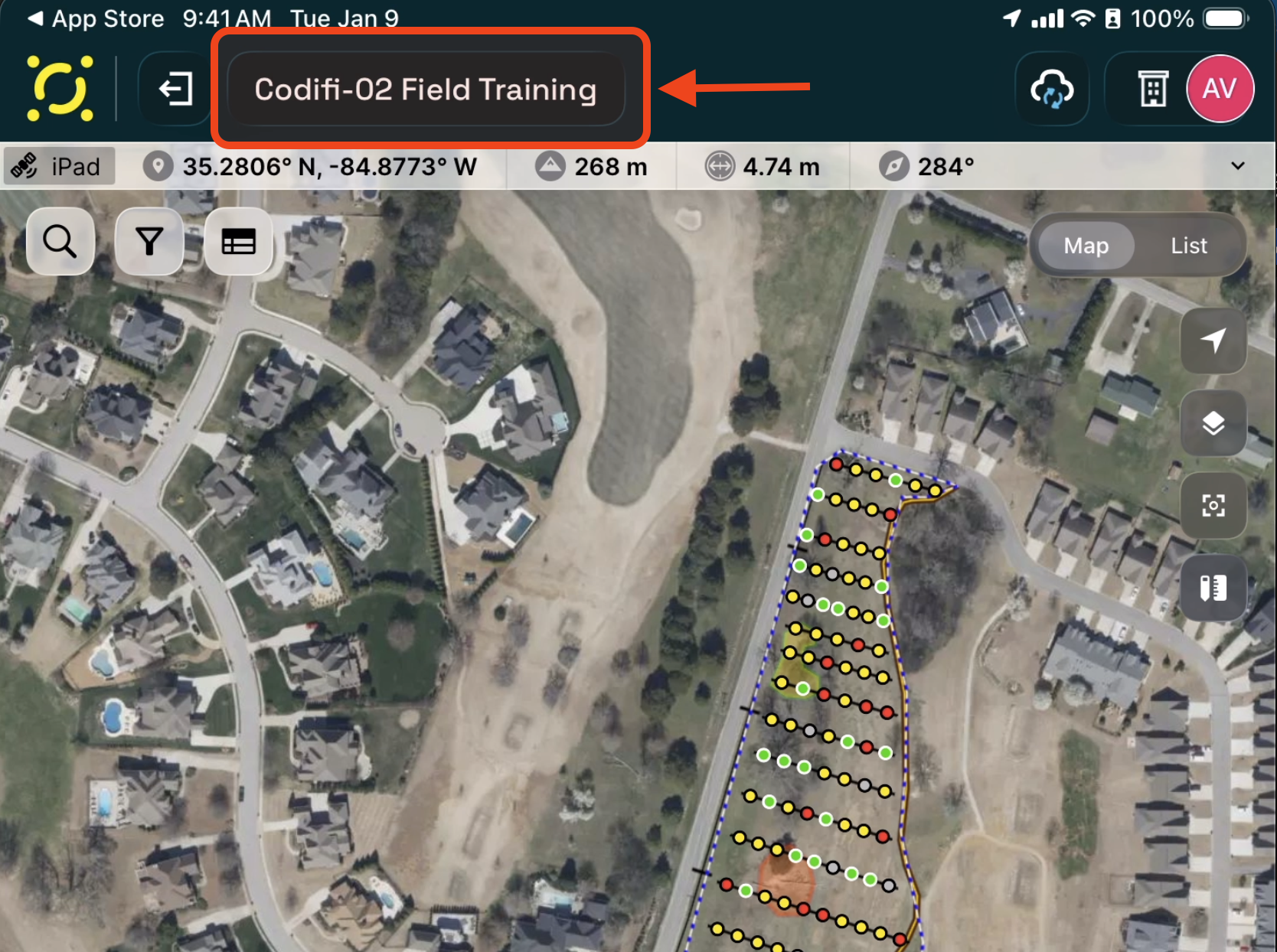
1. Tap the **Project name** at the top of the screen — this opens **Project Details**.
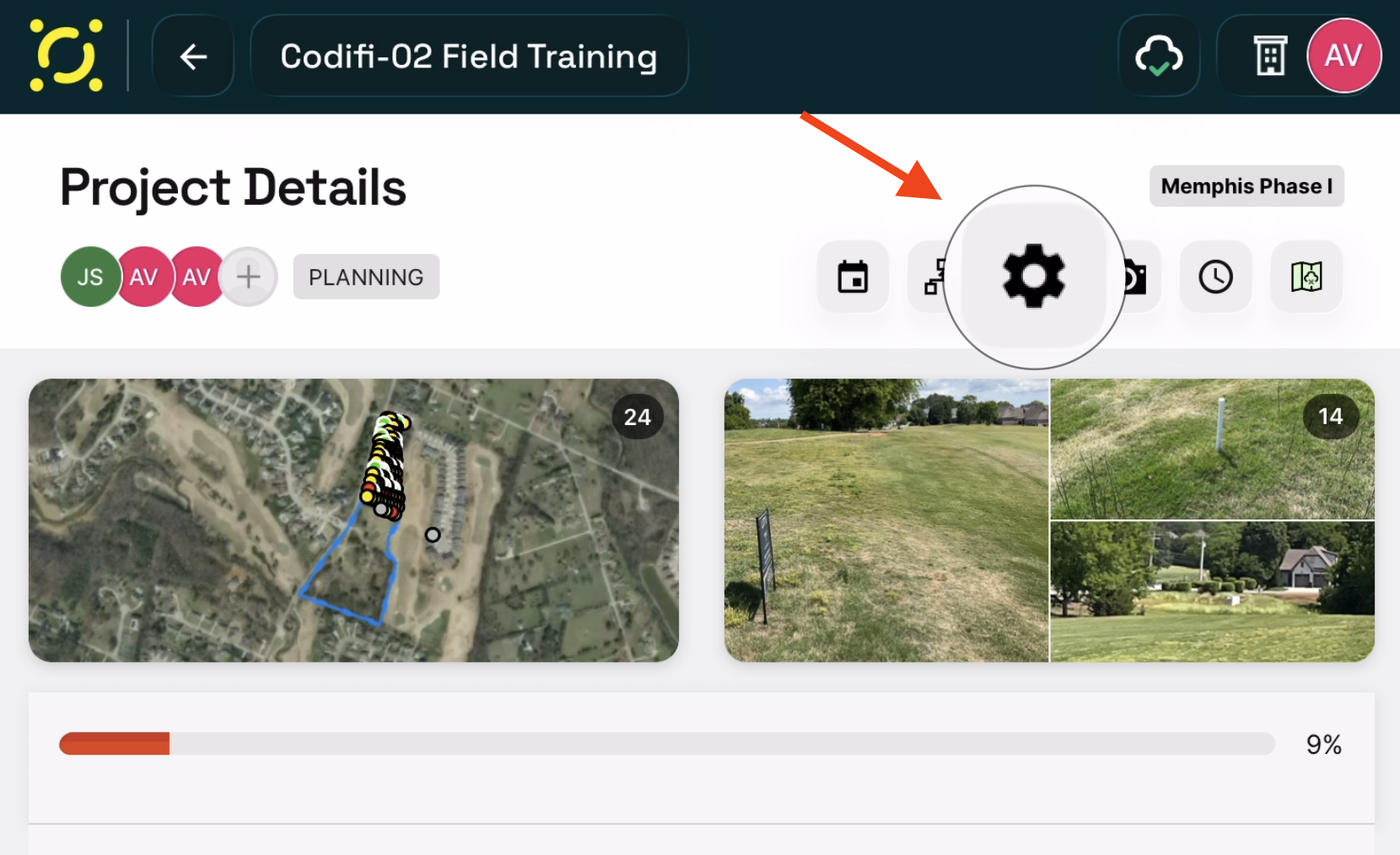
2. Tap the **Settings** (gear) icon in the Project Details toolbar.

<figure><img src="https://3544178300-files.gitbook.io/~/files/v0/b/gitbook-x-prod.appspot.com/o/spaces%2FJ8P3pqhxdFwQkIOjOUut%2Fuploads%2Fgit-blob-3ae99be5d5d049b458092c9e7758672f1a52db5d%2Fmedia-upload-config-project-name.png?alt=media" alt="The map screen with the Project name highlighted in the top navigation bar"><figcaption><p>Tap the Project name at the top of the screen to open Project Details.</p></figcaption></figure>

<figure><img src="https://3544178300-files.gitbook.io/~/files/v0/b/gitbook-x-prod.appspot.com/o/spaces%2FJ8P3pqhxdFwQkIOjOUut%2Fuploads%2Fgit-blob-e234de7829f593c984ee824f3d55027f28dc0106%2Fmedia-upload-config-gear-icon.png?alt=media" alt="The Project Details screen with the gear icon highlighted"><figcaption><p>The Settings (gear) icon on the Project Details screen.</p></figcaption></figure>

The Project Settings sheet slides up, grouped into three sections — **User Preferences**, **Defaults and Presets** (Media Upload Configuration, Auto-Numbering Groups, File Naming Presets), and **Archetype-Level Configurations** — covered below.

***

## Naming Scheme (Default File Naming)

**File Naming Presets** (under **Defaults and Presets**) sets the Project's **default file naming** policy — used by every archetype that hasn't been given its own custom naming policy.

| Setting                | What it does                                                                                           |
| ---------------------- | ------------------------------------------------------------------------------------------------------ |
| **Scheme**             | The default scheme: Project / Record · Custom Prefix · Date – Original                                 |
| **Custom Prefix**      | Used when scheme is Custom Prefix                                                                      |
| **Restart per Record** | When on, file numbers restart at `001` for each Record. When off, numbers continue across the Project. |

A live **Preview** below the controls shows two example Records and what the filenames would look like — helpful for confirming a tweak looks right before fieldwork starts.

[**→ Full file naming reference, including the four schemes and File Naming Groups**](/codifi-docs/mobile-app/mobile-project-settings/media-configuration.md#file-naming)

***

## Media Upload Configuration

The **Media Upload Configuration** entry (under **Defaults and Presets**) holds everything about how media uploads behave on your device:

* **Save to iOS Photos** — whether captures also copy to your iOS Photo Library.
* **Upload Fields** — which metadata fields (Media Subtype, Filename, Title, Caption, Creator, Accessibility Text, Additional Notes, Bearing) appear in your Save Media sheet.

[**→ Full walkthrough with screenshots: Media Configuration**](/codifi-docs/mobile-app/mobile-project-settings/media-configuration.md)

***

## User Preferences

These two toggles sit at the top of the Project Settings sheet under **User Preferences**.

### Quick GPS Create

| Setting              | What it does                                                                                                                                                                                                        |
| -------------------- | ------------------------------------------------------------------------------------------------------------------------------------------------------------------------------------------------------------------- |
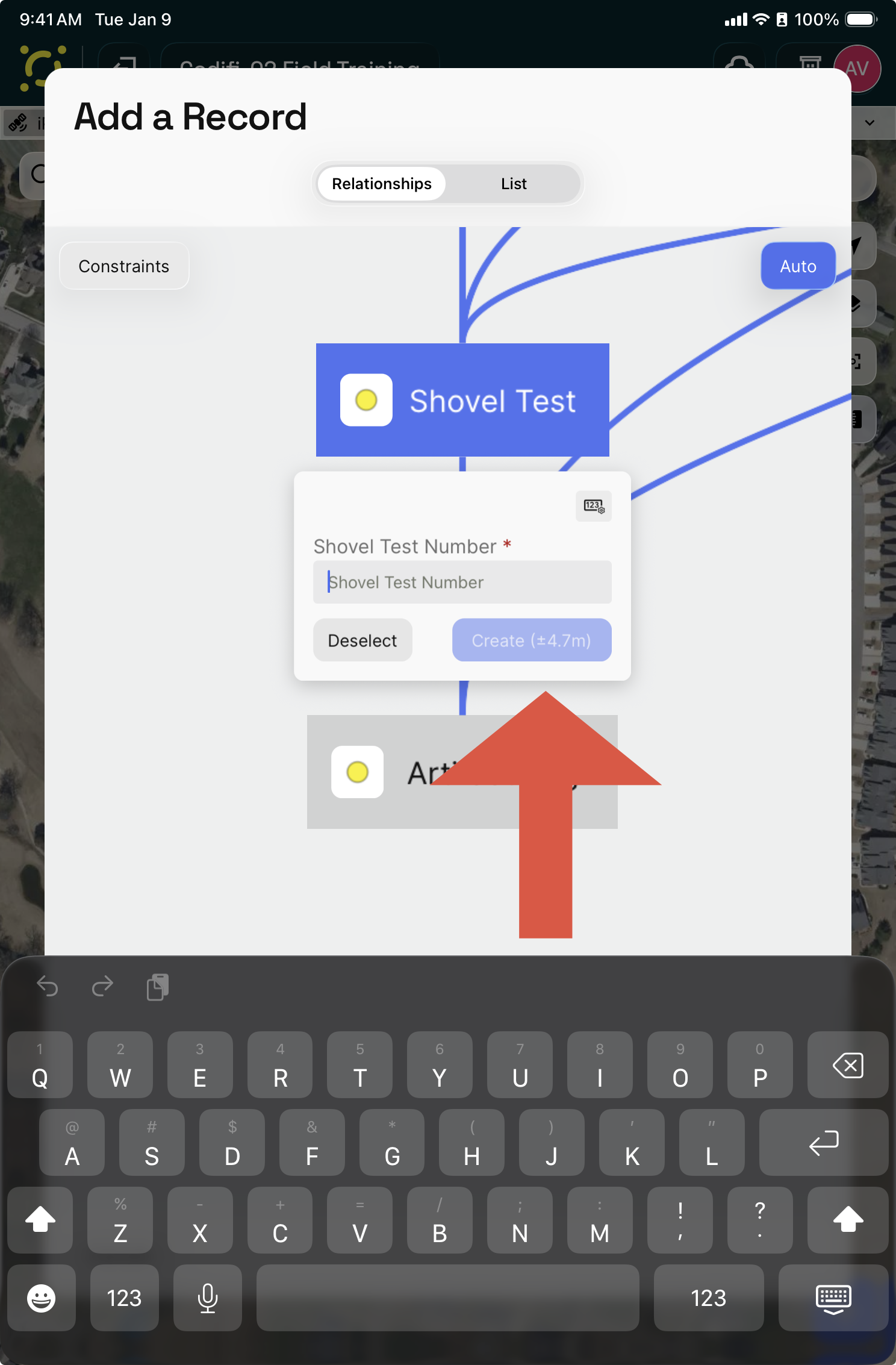
| **Quick GPS Create** | When enabled, **single-point archetypes** show a single Create button on the Record-creation screen that instantly saves your current GPS location and creates the Record — skipping the manual map-placement step. |

<figure><img src="https://3544178300-files.gitbook.io/~/files/v0/b/gitbook-x-prod.appspot.com/o/spaces%2FJ8P3pqhxdFwQkIOjOUut%2Fuploads%2Fgit-blob-6c33a86c98a3d3078a1b36dbd83e402d24620907%2Fquick-gps-create-single-create-button.png?alt=media" alt="The Add a Record screen showing a single Create button with live GPS accuracy"><figcaption><p>With Quick GPS Create on, single-point archetypes show one Create button with live GPS accuracy — one tap creates the Record at your current position.</p></figcaption></figure>

This is the right toggle for high-volume single-point workflows: shovel test pits, photo stations, isolated finds, monitoring observations. A surveyor who's standing at the right spot and just wants the Record stamped at their current coordinates can do it in one tap instead of three.

It does nothing for line or polygon archetypes — those still go through Draw Mode for vertex placement.

> **Not seeing the two-button "Create vs Create and Map" choice?** That's Quick GPS Create at work. Turn it off — for one archetype or the whole Project, below — and single-point archetypes go back to the two-path prompt. Useful when crews split the work: one person creates the Record and enters data while another captures the point.

#### Turning it off for a single archetype

Quick GPS Create can be overridden **per archetype** (single-point archetypes only): each one can follow the Project default, or be explicitly **On** or **Off**.

The fastest route is straight from the Record-creation screen — tap the **settings icon** in the corner of the create card:

<figure><img src="https://3544178300-files.gitbook.io/~/files/v0/b/gitbook-x-prod.appspot.com/o/spaces%2FJ8P3pqhxdFwQkIOjOUut%2Fuploads%2Fgit-blob-01476ccf2c546ca263559c64b9b76c4346f7aad7%2Fquick-gps-create-archetype-settings-icon.png?alt=media" alt="The create card with the archetype settings icon highlighted in its top-right corner"><figcaption><p>The settings icon on the create card opens that archetype's own configuration.</p></figcaption></figure>

Then, under **Record Creation**, set **Quick GPS Create** to **Off**:

<figure><img src="https://3544178300-files.gitbook.io/~/files/v0/b/gitbook-x-prod.appspot.com/o/spaces%2FJ8P3pqhxdFwQkIOjOUut%2Fuploads%2Fgit-blob-ef923d33df9489186b6140f9878dd1e89ec861ce%2Fquick-gps-create-archetype-override.png?alt=media" alt="The archetype configuration sheet showing Quick GPS Create set to Off, overriding the Project default"><figcaption><p>Off for this archetype — overrides the Project default. Choose Default to follow the Project toggle again.</p></figcaption></figure>

The same screen is also reachable from **Project Settings → Archetype-Level Configurations**.

#### Turning it off for the whole Project

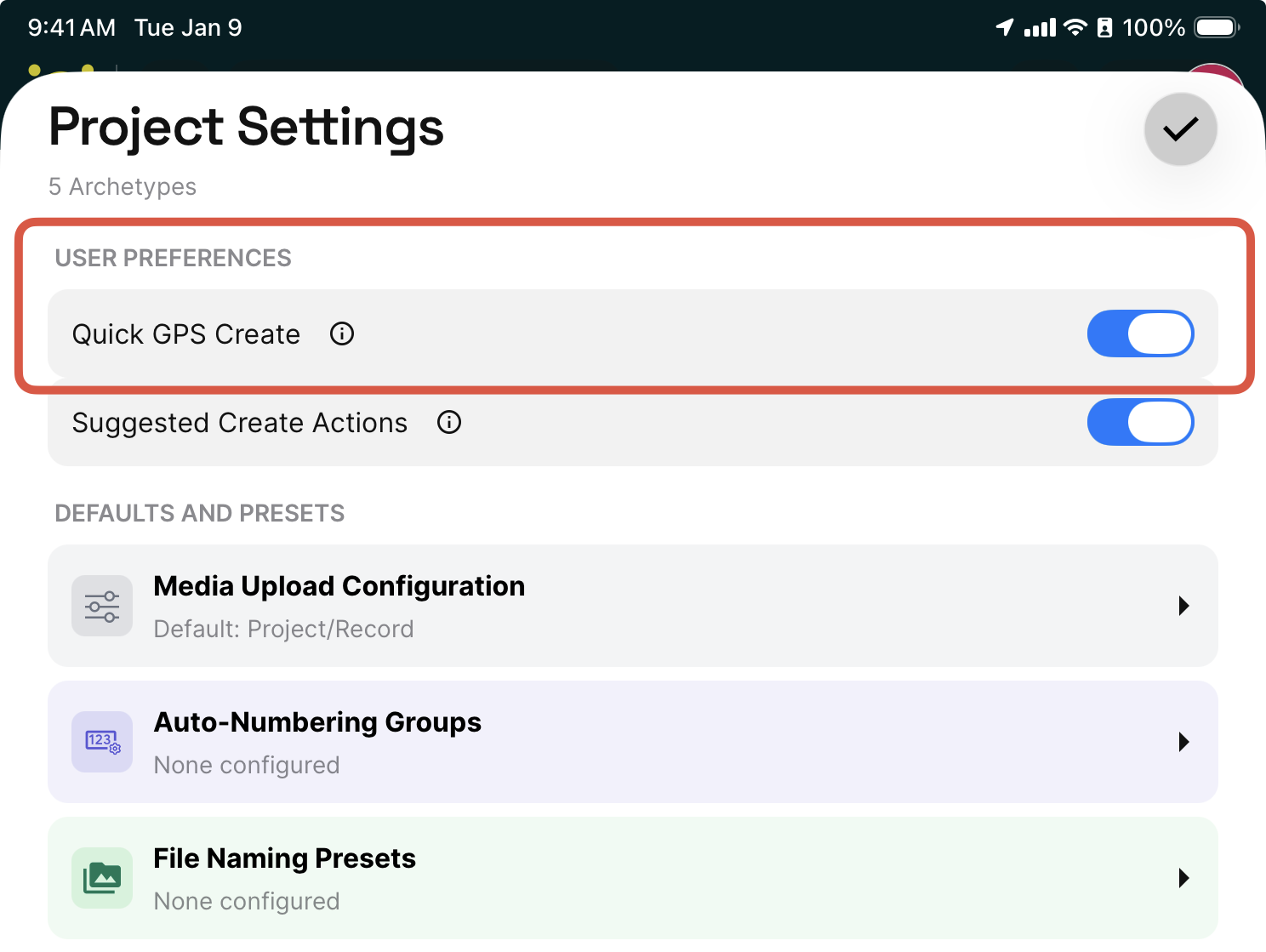
The master toggle lives at the top of the Project Settings sheet:

<figure><img src="https://3544178300-files.gitbook.io/~/files/v0/b/gitbook-x-prod.appspot.com/o/spaces%2FJ8P3pqhxdFwQkIOjOUut%2Fuploads%2Fgit-blob-dd8f1928f76c05588d8b8e1666db4b0b8cdb6d78%2Fquick-gps-create-project-toggle.png?alt=media" alt="The Project Settings sheet with the Quick GPS Create toggle highlighted under User Preferences"><figcaption><p>Project Settings → User Preferences → Quick GPS Create sets the default for every single-point archetype in the Project.</p></figcaption></figure>

### Suggested Create Actions (Smart FAB)

| Setting                      | What it does                                                                                                                                                     |
| ---------------------------- | ---------------------------------------------------------------------------------------------------------------------------------------------------------------- |
| **Suggested Create Actions** | When enabled, the **+** button on the map shows suggested Record-creation shortcuts based on your recent activity and the currently selected Record (Smart FAB). |

Examples:

* With a Site selected, the + menu suggests creating a Feature (a likely child of Site).
* After creating five Shovel Tests in a row, the + menu suggests "Create another Shovel Test."

Disable this if your team prefers the classic "open the full creation screen every time" flow.

***

## Auto-Numbering & File Naming (Per Archetype)

The **Archetype-Level Configurations** section lists every archetype in the Project plus a **Project Gallery** entry. Tap any one to open its detailed policy:

* **Auto-Numbering Policy** — controls automatic Record-name suggestions for that archetype. See [Record Auto-Numbering](/codifi-docs/mobile-app/mobile-project-settings/record-auto-numbering.md) for the full mechanics, including **Numbering Groups** that share a sequence across multiple archetypes.
* **File Naming Policy** — controls how uploaded media files are named for that archetype. See [Media Configuration](/codifi-docs/mobile-app/mobile-project-settings/media-configuration.md#file-naming) for the four naming schemes, three modes (Default / Custom / Group), and **File Naming Groups**.
* **Quick GPS Create override** (single-point archetypes only) — follow the Project default, or force one-tap GPS creation On or Off for just this archetype. See [Quick GPS Create](#quick-gps-create) above.

The **Project Gallery** is the Project-level media catch-all (uploaded to Project Details, not to a specific Record). It only has file-naming settings — auto-numbering doesn't apply because there are no Records to number.

***

## Resetting

The bottom of the Project Settings sheet has an **ACTIONS** section with **Reset All to Default** — clears every per-archetype custom policy back to inheriting the Project default. Useful if you've experimented with settings and want a clean slate. Warns you up front about how many archetypes will be affected.

***

## Tips

* **Configure these settings before fieldwork**, not during. A field crew with mismatched naming policies generates cleanup work that lasts longer than the Project.
* **Take a screenshot of your settings** after configuring them. If a teammate accidentally toggles something off mid-Project, you'll have a reference to restore from.
* **Save to iOS Photos** is worth leaving on for active Projects but turning off (and clearing the iOS Photo Library) at Project close. Otherwise large Projects can fill up an iPad's photo storage with redundant copies.
* **Quick GPS Create** is the single biggest workflow accelerator for high-volume single-point archetypes — turn it on and watch Records-per-hour climb. But disable it for archetypes where surveyors should be deliberately placing points by hand (e.g., revisits, datums).

***

## See Also

* [Getting in the Field](/codifi-docs/mobile-app/getting-in-the-field.md) — the pre-fieldwork checklist that uses these settings
* [Record Auto-Numbering](/codifi-docs/mobile-app/mobile-project-settings/record-auto-numbering.md) — full auto-numbering reference + Numbering Groups
* [Media Configuration](/codifi-docs/mobile-app/mobile-project-settings/media-configuration.md) — Upload Fields, Save to iOS Photos, and the full file-naming reference + File Naming Groups
* [Capturing Photos & Media](/codifi-docs/mobile-app/capturing-photos-and-media.md) — the upload flow that uses the Upload Fields toggles