> For the complete documentation index, see [llms.txt](https://codifi-fdm.gitbook.io/codifi-docs/llms.txt). Markdown versions of documentation pages are available by appending `.md` to page URLs; this page is available as [Markdown](https://codifi-fdm.gitbook.io/codifi-docs/mobile-app/mobile-project-settings/media-configuration.md).

# Media Configuration

Everything about how media behaves at upload lives in one place: which metadata fields you fill in when saving a photo (**Upload Fields**), whether captures also copy to your iOS Photo Library (**Save to iOS Photos**), and how uploaded files get named (**File Naming**).

The first two are set in the **Media Upload Configuration** sheet; file naming has per-archetype policies. Both are reached from [Mobile Project Settings](/codifi-docs/mobile-app/mobile-project-settings.md).

***

## Media Upload Configuration

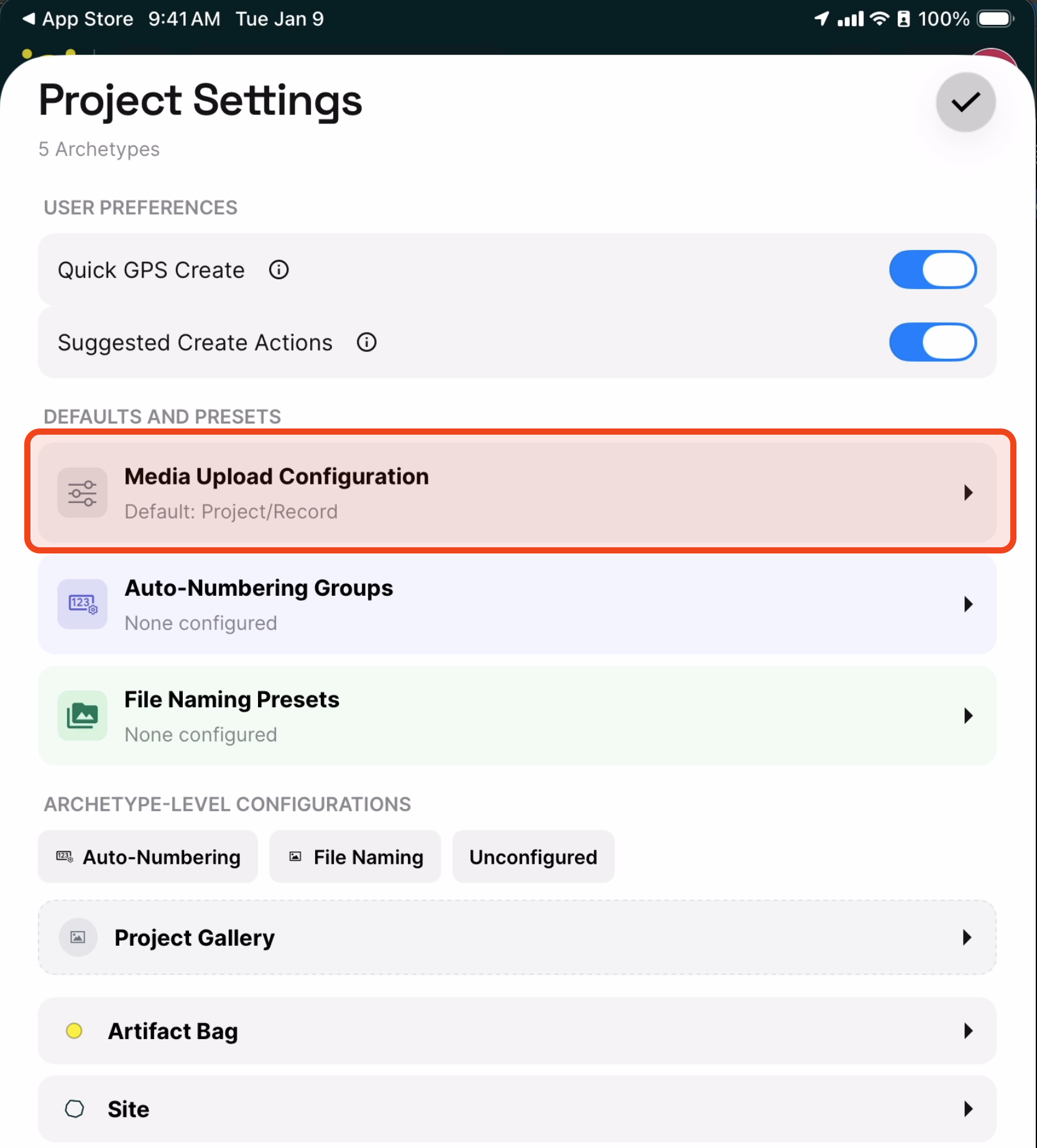
From the Project Settings sheet (tap the **Project name** → the **gear** icon), open **Media Upload Configuration** under **Defaults and Presets**:

<figure><img src="https://3544178300-files.gitbook.io/~/files/v0/b/gitbook-x-prod.appspot.com/o/spaces%2FJ8P3pqhxdFwQkIOjOUut%2Fuploads%2Fgit-blob-b49a944e155e474f3dda68e1a68f847ff0211613%2Fmedia-upload-config-menu-item.png?alt=media" alt="The Project Settings sheet with Media Upload Configuration highlighted"><figcaption><p><strong>Media Upload Configuration</strong> in the Project Settings sheet.</p></figcaption></figure>

### Save to iOS Photos

A single switch at the top of the sheet:

| Setting                | What it does                                                                                                                                      |
| ---------------------- | ------------------------------------------------------------------------------------------------------------------------------------------------- |
| **Save to iOS Photos** | When on, photos and videos captured inside Codifi are also saved to your device's iOS Photo Library, so you have a personal copy outside the app. |

Most teams leave this **on**. It's a useful safety net during long field days. Disable it if your iPad is provisioned with strict storage rules or if your team has a "Codifi only" data retention policy.

### Upload Fields

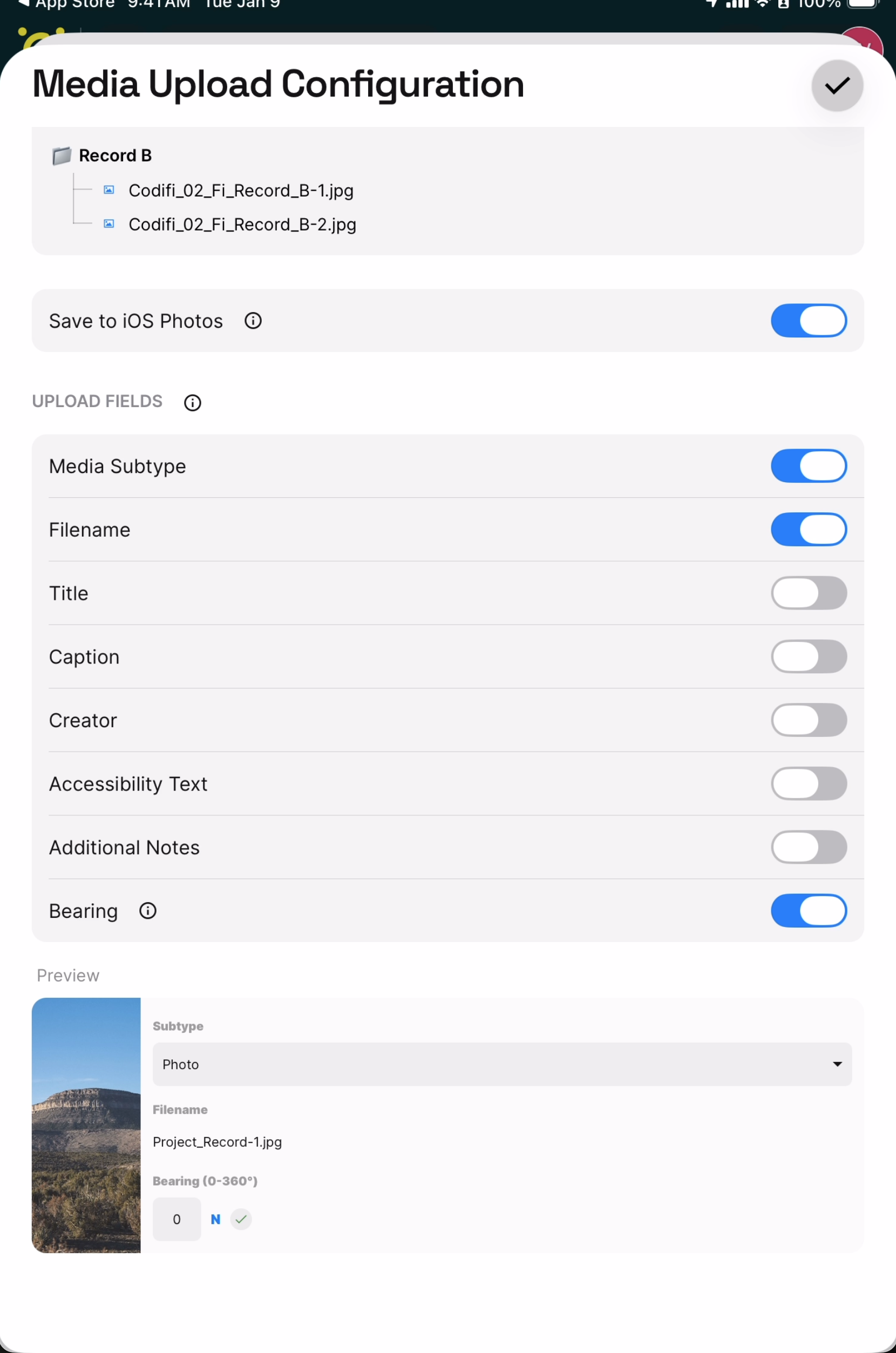
Controls **which metadata fields appear in your Save Media sheet** when uploading a photo, video, or document. Scroll to **Upload Fields** and toggle the fields you want to fill in during media capture:

<figure><img src="https://3544178300-files.gitbook.io/~/files/v0/b/gitbook-x-prod.appspot.com/o/spaces%2FJ8P3pqhxdFwQkIOjOUut%2Fuploads%2Fgit-blob-9040d9c042c810457dd7367b2e99aaa1c7a97f0d%2Fmedia-upload-config-upload-fields.png?alt=media" alt="The Media Upload Configuration sheet showing the Upload Fields toggles and preview card"><figcaption><p>The Upload Fields toggles. The Preview card at the bottom shows the Save Media sheet exactly as it will appear with your current selection.</p></figcaption></figure>

{% hint style="info" %}
**Upload Fields is a per-user, per-device setting.** The toggles you set here only affect your own upload sheet — they don't change what other people on the Project see. Each teammate can pick the fields that match their own workflow without affecting anyone else's.
{% endhint %}

| Field                  | What it captures                                                                                                                      | Default |
| ---------------------- | ------------------------------------------------------------------------------------------------------------------------------------- | ------- |
| **Media Subtype**      | The category of the media (Overview Photo, Profile Drawing, etc.) — required for any sub-type-aware report or export                  | On      |
| **Filename**           | The generated or editable filename                                                                                                    | On      |
| **Title**              | A display title for the media item                                                                                                    | Off     |
| **Caption**            | A caption stored with the media, available to reports                                                                                 | Off     |
| **Creator**            | Who is credited with capturing the media                                                                                              | Off     |
| **Accessibility Text** | Alt text describing the image's content for screen readers and reports                                                                | Off     |
| **Additional Notes**   | A free-text note attached to the media                                                                                                | Off     |
| **Bearing**            | Compass direction the camera was facing (0–360°) — saved into GPS metadata. Useful for documenting which way the camera was pointing. | Off     |

A live **Preview** card below the toggles shows the upload sheet as it will appear with your current settings — useful for confirming you've enabled the right fields before fieldwork.

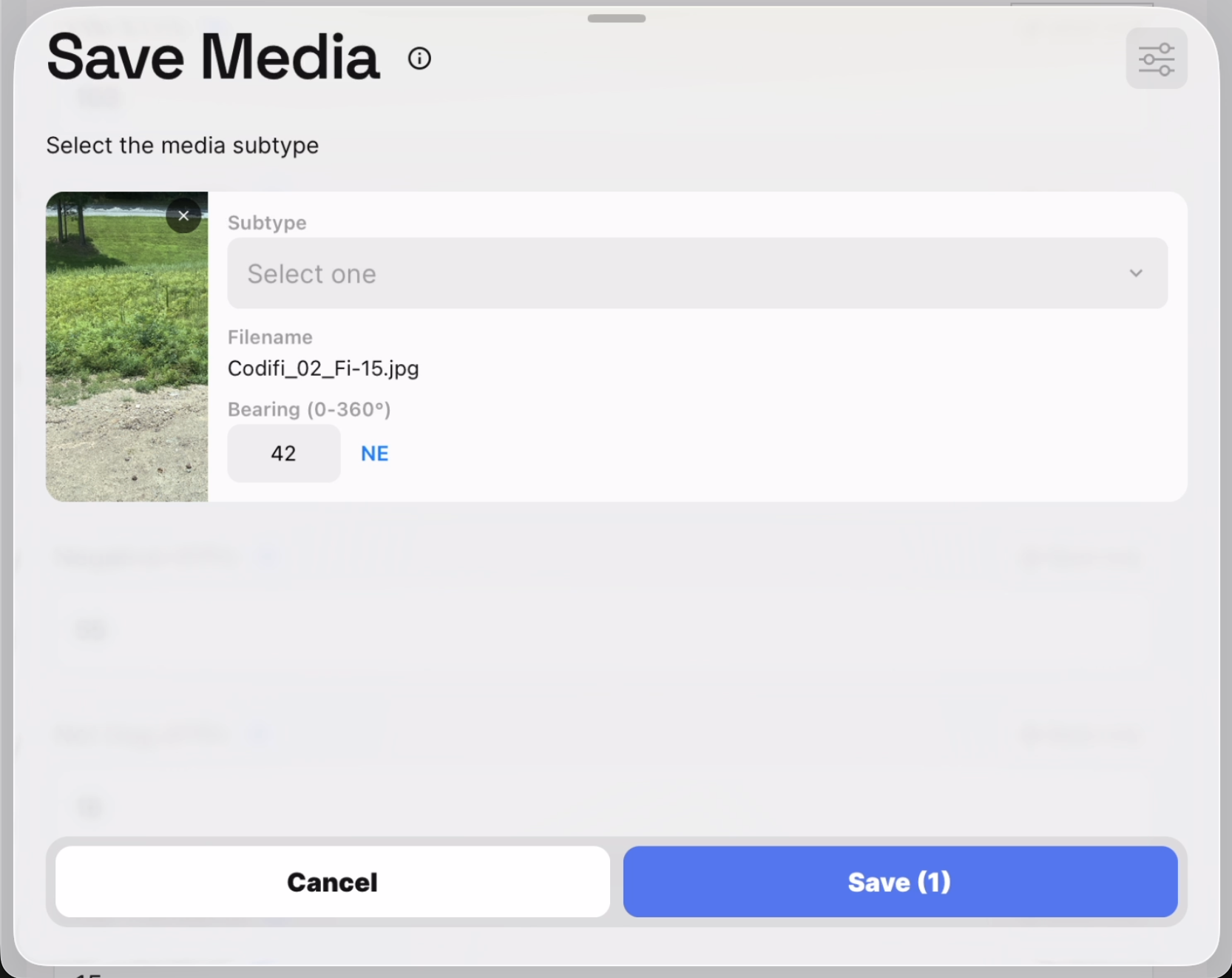
The payoff comes at capture time: the **Save Media** sheet shows exactly the fields you enabled and nothing more, so saving a photo stays a two-second step.

<figure><img src="https://3544178300-files.gitbook.io/~/files/v0/b/gitbook-x-prod.appspot.com/o/spaces%2FJ8P3pqhxdFwQkIOjOUut%2Fuploads%2Fgit-blob-811ed9e25a348bf167b4f2f7b5ac4664decc2f0c%2Fmedia-upload-config-save-media-sheet.png?alt=media" alt="The Save Media sheet after capturing a photo, showing subtype, filename, and bearing fields"><figcaption><p>After capturing media you're presented with your configured fields — here Media Subtype, Filename, and Bearing.</p></figcaption></figure>

Because this setting is per-device, every teammate should glance through their own Upload Fields once at the start of a Project. The defaults work for most workflows, but anyone capturing GPS-tagged photos that need a bearing, or generating reports that key off Accessibility Text, will want those toggles on for their own uploads.

***

## File Naming

When a photo, video, sketch, or document is uploaded to a Record, Codifi can rename the file according to your Project's **File Naming Policy** — replacing arbitrary names like `IMG_3247.jpg` with structured names like `Camp_County_Survey-STP-014-001.jpg`.

Out of the box, photos taken on iPad or imported from the photo library carry whatever filename iOS gave them — usually a generic counter. That's a problem when:

* An agency expects a specific filename pattern (e.g. THC's photo labeling protocol, Section 106 deliverables, NPS site forms).
* You're building exports where the filename needs to encode the Record context (Project, archetype, Record number).
* Multiple field crews are uploading to the same Project and you need filenames that won't collide.

Codifi's file naming policy generates the filename for you at upload time, based on per-archetype rules. The rest of this page covers the four naming schemes, the three configuration modes, the Project-wide override, and **File Naming Groups** for sharing a sequence across multiple archetypes.

### The Four Naming Schemes

| Scheme               | What the filename looks like       | Use when                                                                      |
| -------------------- | ---------------------------------- | ----------------------------------------------------------------------------- |
| **Project / Record** | `Project_Name-Record_Name-001.jpg` | You want a self-describing filename that ties each photo to its source Record |
| **Custom Prefix**    | `MyPrefix-001.jpg`                 | You have a prescribed prefix (an agency code, a Project number, a survey ID)  |
| **Date – Original**  | `2026-04-25-IMG_3247.jpg`          | You want chronological sorting but want to preserve the original filename     |
| **Original**         | `IMG_3247.jpg`                     | You don't want Codifi to rename anything (the off state)                      |

The sequence number suffix (`-001`, `-002`, etc.) is automatically appended on the schemes that don't include the original filename.

### The Three Modes

A file naming policy can run in one of three **modes**, which control where the actual settings come from:

| Mode        | Settings come from                                                              |
| ----------- | ------------------------------------------------------------------------------- |
| **Default** | The Project's global file-naming policy (set in Project Settings)               |
| **Custom**  | The archetype's own settings — scheme, custom prefix, restart-per-Record toggle |
| **Group**   | A shared **File Naming Group** that several archetypes can join                 |

Most archetypes start in **Default** mode and inherit the Project-wide setting. Switch to **Custom** when one archetype needs different naming than the rest of the Project. Switch to **Group** when several archetypes should share a single counter.

### Configuring File Naming for an Archetype

1. From the Project, open **Project Details → Settings**.
2. Under **Archetype-Level Configurations**, tap the archetype you want to configure.
3. Scroll to the **File Naming** section.
4. Set the **mode** (Default, Custom, or Group).
5. If Custom, pick a **scheme** and (if Custom Prefix) type the prefix.
6. Decide whether to **restart numbering per Record** or continue across the Project.

> **Screenshot placeholder:** *The Archetype Policy Detail sheet showing the File Naming section: mode selector, scheme picker, custom prefix field, restart-per-Record toggle.*

#### Restart per Record

The **Restart Per Record** toggle controls how the sequence counter behaves:

* **On** — numbering restarts at `001` for each Record. STP-014's photos are `001`, `002`, `003`, even if STP-013 already had photos.
* **Off** — numbering continues across the whole Project. STP-014's first photo is `247` if 246 photos already exist for that archetype.

Per-Record numbering is more familiar to crews used to numbered photo logs. Project-continuous numbering produces shorter filenames and matches some agency conventions. Pick deliberately and stick with it.

### File Naming Groups

A **File Naming Group** is the file-naming equivalent of a [Numbering Group](/codifi-docs/mobile-app/mobile-project-settings/record-auto-numbering.md#numbering-groups) — it lets several archetypes share a single counter and a single configuration.

**When to use one:**

* Several archetypes should produce media filenames in a single unified sequence (every uploaded photo across *Site*, *Feature*, and *Artifact* shares one counter).
* You want to update the naming convention in one place and have it apply across multiple archetypes.

**Setting one up:**

1. Open any archetype's File Naming policy and switch the mode to **Group**.
2. Tap **File Naming Group** and choose an existing group, or tap **+ New Group**.
3. Give the group a name and configure its scheme + prefix.
4. Switch every other archetype that should share the sequence to the same group.

Once joined, all archetypes in the group write to a single counter — and any change to the group's scheme or prefix updates everywhere instantly.

### The Project Gallery

Media uploaded to **Project Details** (the Project Gallery) — not attached to a specific Record — gets its own file naming policy. The Project Gallery has the same scheme and mode options as a regular archetype, with two differences:

* **Auto-numbering doesn't apply** — there are no Records to number.
* **The Project / Record scheme adapts** — without a Record context, it falls back to just the Project name.

Configure the Project Gallery's policy from **Project Details → Settings → Project Gallery** (it's listed alongside the actual archetypes under Archetype-Level Configurations).

### What Happens When You Upload

When you tap Add on a media picker, Codifi:

1. Looks up the file naming policy for the destination archetype (or Project Gallery).
2. Resolves the policy through any group or default-mode inheritance.
3. Generates a filename for each file in the upload using the chosen scheme and the next sequence number.
4. Saves the file with its new name and uploads it on the next sync.

The original filename is preserved in metadata, so you can still trace a renamed file back to its source if you need to.

***

## Tips

* **Configure media settings before fieldwork.** Renaming hundreds of already-uploaded photos after the fact is painful, and a crew capturing without Bearing enabled can't add it retroactively. A five-minute setup before crews go out is far cheaper than days of post-processing.
* **Custom Prefix is the right choice for agency conventions.** If a state agency requires filenames like `TX-CP-Pittsburg-Marshall-St-103-01.jpg`, build the prefix from your Project's variables and use Custom Prefix.
* **Default mode is fine for most archetypes.** Only one archetype in your Project has a special naming requirement? Set the Project-wide policy to that, and let the rest of the archetypes inherit. You only need Custom or Group when something genuinely differs.
* **Group + Project-continuous numbering is the most powerful combo.** A single global counter across every archetype's media is the cleanest pattern when you want every photo to have a unique filename across the entire Project.

***

## See Also

* [Mobile Project Settings](/codifi-docs/mobile-app/mobile-project-settings.md) — the settings hub this page hangs off
* [Capturing Photos & Media](/codifi-docs/mobile-app/capturing-photos-and-media.md) — how to take and upload media in the first place
* [Record Auto-Numbering](/codifi-docs/mobile-app/mobile-project-settings/record-auto-numbering.md) — sister system for naming Records (which feeds the Project / Record scheme)