> For the complete documentation index, see [llms.txt](https://codifi-fdm.gitbook.io/codifi-docs/llms.txt). Markdown versions of documentation pages are available by appending `.md` to page URLs; this page is available as [Markdown](https://codifi-fdm.gitbook.io/codifi-docs/reports/introduction-to-word-and-excel-custom-reports.md).

# Introduction to Word and Excel Custom Reports

Codifi’s reporting features enable you to generate detailed reports for Projects and Records using report templates. Report templates are prepared ahead of time with report tags that specify your expectations for what data, media, and location information should be sourced from Project content. The flexibility of the system allows for the inclusion of tables, summaries, and more, making it a powerful tool for reporting.

#### General Considerations for Codifi's Reporting System:

* **File Format**: Report templates must be in **.docx or .xlsx** formats to be compatible with Codifi’s reporting system. You can prepare your templates using any Word or Excel processing software that allows you to manipulate and export these file types. Although, it is *highly recommended to use Microsoft Word,* because other programs, such as Google Docs, may cause unexpected results and errors in certain situations.
* **Report Tags**: Tags are what instruct the Codifi system to source the right Project content for your reports. Prepare your templates by inserting relevant tags into the lines where you want content to be printed. **While most tags are compatible with both formats, handling tables and collections may vary slightly between Word and Excel.** You can learn more about these tags in other sections of this documentation.
* **Using Report Templates**: Once your template carries the tags you want, upload it in the **Reports** section of a Project and choose what to generate it from. The walkthrough is in [Generating a Report](#generating-a-report) below.
* **Report Context**: When generating a report in your Project from a report template the **context** matters, meaning where you are choosing to generate the report from (i.e. from a specific Record, or from the Project as a whole). If you've included report tags in a report template that will instruct the Codifi system to source Project content for custom configured elements, such as fields configured on Archetypes, make sure to generate your reports from contexts where the system will actually be able to find that content or else you may get unexpected results.

{% hint style="info" %}
Remember: Codifi is similar to a *relational database*; Records can have parents and ancestors, children and descendants. If you're trying to report on data from Records that are related to your context, it's important to know what those relationships are.
{% endhint %}

<div data-with-frame="true"><figure><img src="https://3544178300-files.gitbook.io/~/files/v0/b/gitbook-x-prod.appspot.com/o/spaces%2FJ8P3pqhxdFwQkIOjOUut%2Fuploads%2FBHollpFBn6f3Y2yxXF0A%2Fimage.png?alt=media&amp;token=2af0ddc5-d894-4d34-bd1b-4370fb3db721" alt=""><figcaption><p>Example: SITE Records may have FEATURE and ARTIFACT Records as children. Therefore, a SITE may be a parent of FEATURES and ARTIFACTS.</p></figcaption></figure></div>

{% tabs %}
{% tab title="-> Project" %}
\
**If Scope is set to "This whole Project",** the `{{name}}` tag prints the Project name, because the context starts at the Project level.

<figure><img src="https://3544178300-files.gitbook.io/~/files/v0/b/gitbook-x-prod.appspot.com/o/spaces%2FJ8P3pqhxdFwQkIOjOUut%2Fuploads%2FjjpmwZjocfqOh9hExOjZ%2Fimage.png?alt=media&amp;token=d894a1ba-1d8d-4e09-8114-a717dd5af7ae" alt=""><figcaption></figcaption></figure>
{% endtab %}

{% tab title="-> Record" %}
\
**If Scope is set to "Individual Records",** the `{{name}}` tag prints the Record name, because the context starts at the individual Record.

<figure><img src="https://3544178300-files.gitbook.io/~/files/v0/b/gitbook-x-prod.appspot.com/o/spaces%2FJ8P3pqhxdFwQkIOjOUut%2Fuploads%2FCkfqLIM5d1xshOtFmSfY%2Fimage.png?alt=media&amp;token=9e6cb0dc-ee05-457b-bbf8-4309eecc22a6" alt=""><figcaption></figcaption></figure>
{% endtab %}
{% endtabs %}

***

## Generating a Report

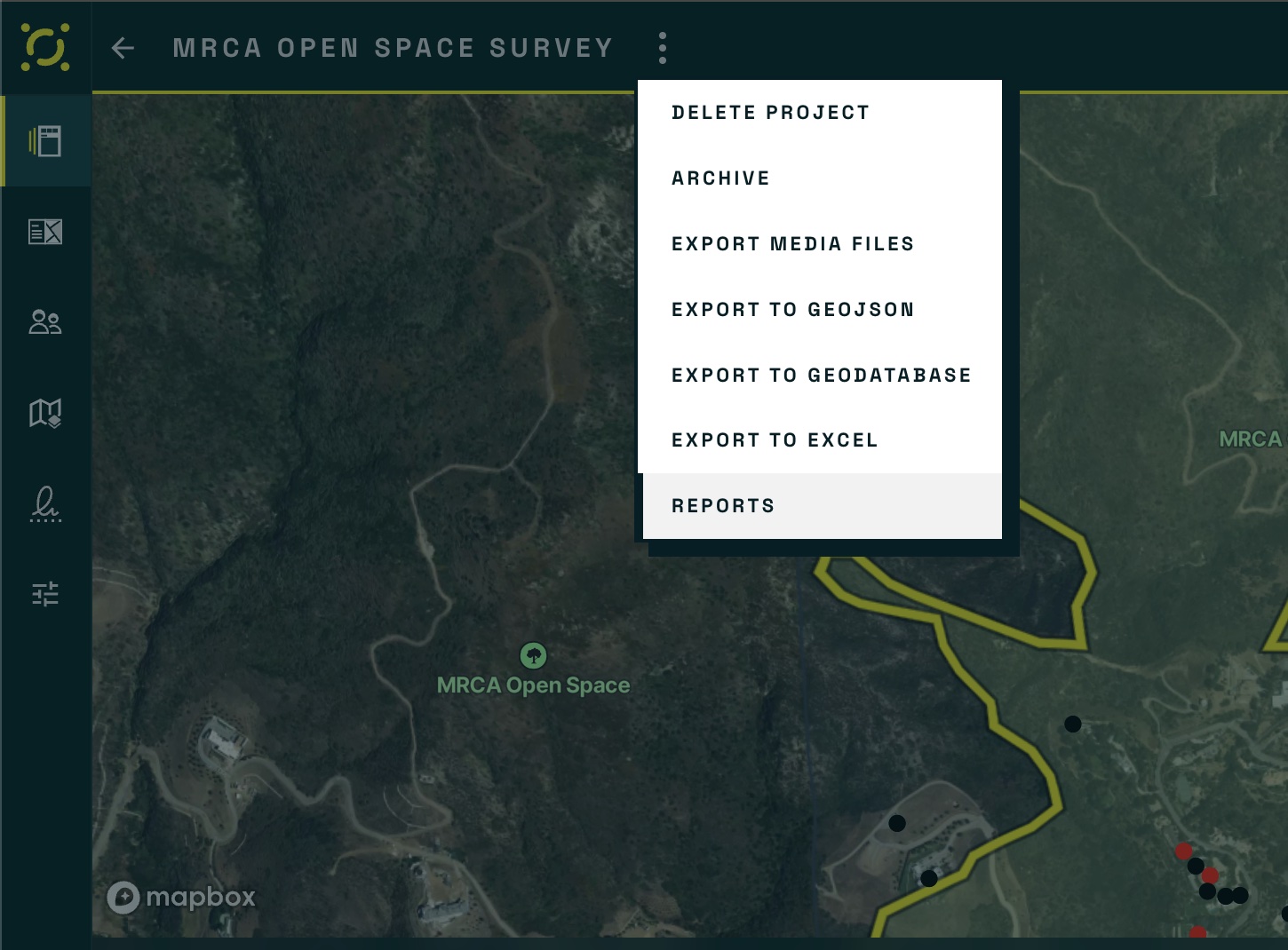
Reports are generated from the Project's **⋮** menu, not from a separate screen.

<figure><img src="https://3544178300-files.gitbook.io/~/files/v0/b/gitbook-x-prod.appspot.com/o/spaces%2FJ8P3pqhxdFwQkIOjOUut%2Fuploads%2Fgit-blob-217ec82ffb68878938e68aa7c0c0d6e5d3101e4a%2Freports-project-menu.jpg?alt=media" alt="The Project menu open with Delete Project, Archive, four export actions, and Reports listed"><figcaption><p><strong>Reports</strong> sits at the bottom of the Project <strong>⋮</strong> menu, beneath the export actions.</p></figcaption></figure>

{% stepper %}
{% step %}
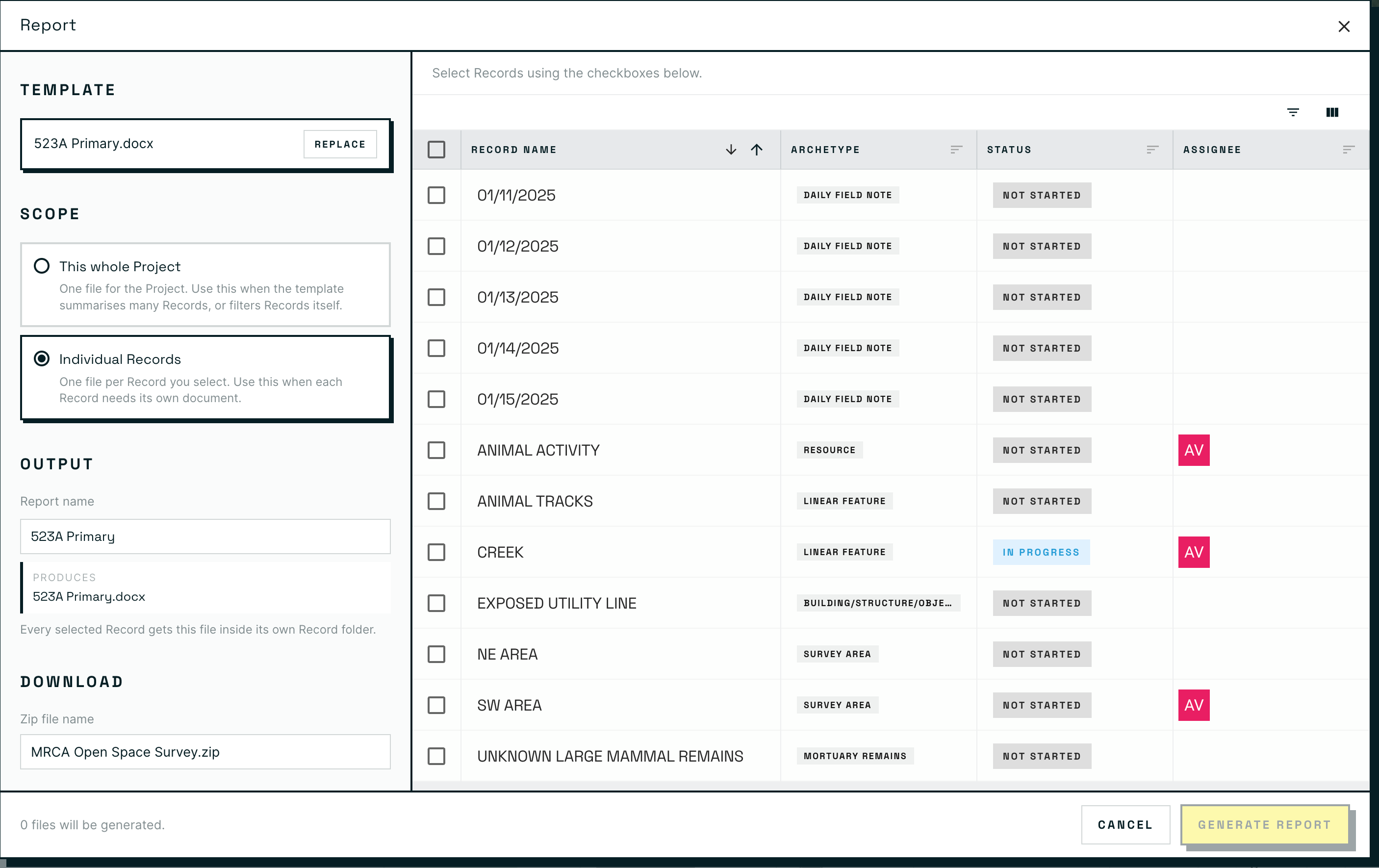
**Upload your template and set the Scope.** The left rail of the Report window holds every decision: which template, what it runs against, what the files are called, and what the zip is called.

<figure><img src="https://3544178300-files.gitbook.io/~/files/v0/b/gitbook-x-prod.appspot.com/o/spaces%2FJ8P3pqhxdFwQkIOjOUut%2Fuploads%2Fgit-blob-38a9d1febeca12a24c3b797e4f80e46ef288b294%2Freports-modal-scope.png?alt=media" alt="The Report window with a template selected, Scope set to Individual Records, Output and Download naming fields on the left, and a selectable Record table on the right"><figcaption><p>The Report window. <strong>Produces</strong> under Output previews the filename you will actually get, and the footer keeps a running count of how many files the current selection will generate.</p></figcaption></figure>

**Scope** is the decision that matters most:

* **This whole Project** produces one file. Use it when the template summarizes many Records, or does its own filtering internally.
* **Individual Records** produces one file per Record you select, each inside its own Record folder.
  {% endstep %}

{% step %}
**Choose the Records.** With **Individual Records** selected, pick them from the table on the right.

Filtering is the fast path when you want a whole class of Record. Build a **Column / Operator / Value** condition, stack more with **Add Filter**, then use the header checkbox to take everything that survives the filter.

<figure><img src="https://3544178300-files.gitbook.io/~/files/v0/b/gitbook-x-prod.appspot.com/o/spaces%2FJ8P3pqhxdFwQkIOjOUut%2Fuploads%2Fgit-blob-1821356b0b2c0f439b09d110382c5e22a51b93ff%2Freports-filter-and-select.png?alt=media" alt="The Record table filtered to Archetype is Survey Area, showing an active filter chip, two rows checked, and a 2 selected badge"><figcaption><p>A filter of <strong>Archetype is Survey Area</strong> narrows the table to two rows, both selected. The chip above the table and the <strong>2 selected</strong> badge stay visible so the filter never silently changes what you are about to generate.</p></figcaption></figure>
{% endstep %}

{% step %}
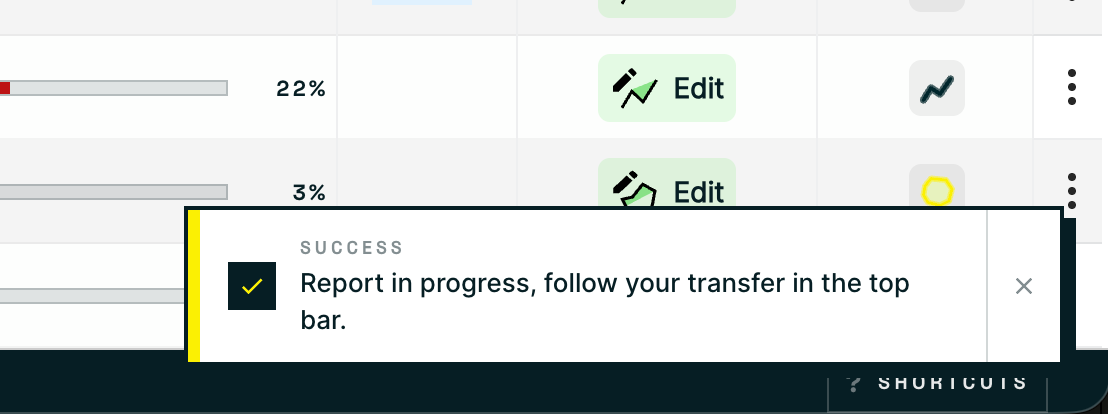
**Generate.** Press **Generate Report**. It confirms straight away and hands the job off.

<figure><img src="https://3544178300-files.gitbook.io/~/files/v0/b/gitbook-x-prod.appspot.com/o/spaces%2FJ8P3pqhxdFwQkIOjOUut%2Fuploads%2Fgit-blob-a494d3a9cc669e864e307648f91f7fde7c819a01%2Freports-success-toast.png?alt=media" alt="A success toast reading Report in progress, follow your transfer in the top bar"><figcaption><p>The toast tells you where to watch. Generation continues even if you navigate away.</p></figcaption></figure>
{% endstep %}

{% step %}
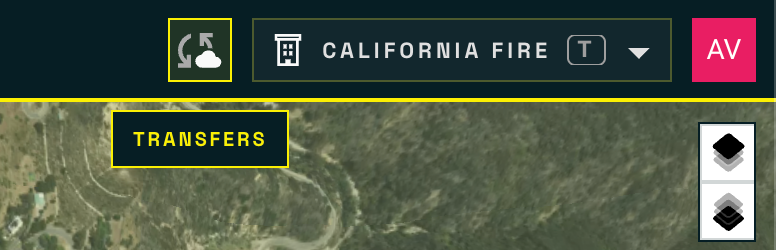
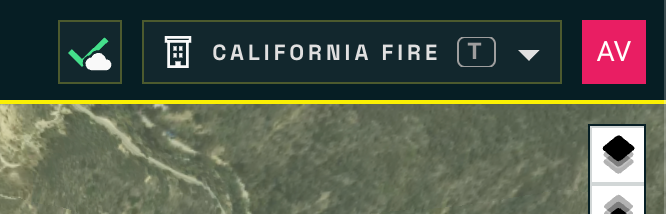
**Collect it from Transfers.** The cloud control in the top bar is **Transfers**. It turns blue while the report builds.

<figure><img src="https://3544178300-files.gitbook.io/~/files/v0/b/gitbook-x-prod.appspot.com/o/spaces%2FJ8P3pqhxdFwQkIOjOUut%2Fuploads%2Fgit-blob-877acbb135a38e7d3d534be314769a7269b76abb%2Freports-transfers-control.png?alt=media" alt="The top bar with the Transfers cloud control highlighted and a Transfers tooltip beneath it"><figcaption><p>The <strong>Transfers</strong> control in the top bar, building.</p></figcaption></figure>

When it finishes, the icon turns to a green check and your download is waiting inside.

<figure><img src="https://3544178300-files.gitbook.io/~/files/v0/b/gitbook-x-prod.appspot.com/o/spaces%2FJ8P3pqhxdFwQkIOjOUut%2Fuploads%2Fgit-blob-565a327638838d57ef6c9de06dcefe1b56be1e2b%2Freports-transfers-ready.png?alt=media" alt="The Transfers control showing a green checkmark"><figcaption><p>Green check: the report is ready to download.</p></figcaption></figure>
{% endstep %}
{% endstepper %}

{% hint style="info" %}
**Reports build on the server, not in your browser.** Once the toast appears you can close the window, move to another Project, or keep working. Transfers holds the result until you fetch it.
{% endhint %}