> For the complete documentation index, see [llms.txt](https://codifi-fdm.gitbook.io/codifi-docs/llms.txt). Markdown versions of documentation pages are available by appending `.md` to page URLs; this page is available as [Markdown](https://codifi-fdm.gitbook.io/codifi-docs/web-app/the-project-workspace.md).

# The Project Workspace

When you open a Project on the web, you land in the **Project Workspace** — the home screen for everything that Project contains. From here you can view Records on a map, browse them as lists, run quality-control reviews, configure Project-level settings, and export data.

> The Project Workspace is the web counterpart to the **Map Screen** on mobile. The state is shared: a Record you create on mobile appears in the web workspace the next time the Project syncs, and vice versa.

***

## How the workspace is laid out

Three controls do most of the navigating, and it helps to know which one does what.

**The view toggle**, top right, switches how the current Records are presented:

| Toggle    | What you get                                                                                                             |
| --------- | ------------------------------------------------------------------------------------------------------------------------ |
| **Map**   | The map fills the window. Best for reading spatial pattern across the whole Project.                                     |
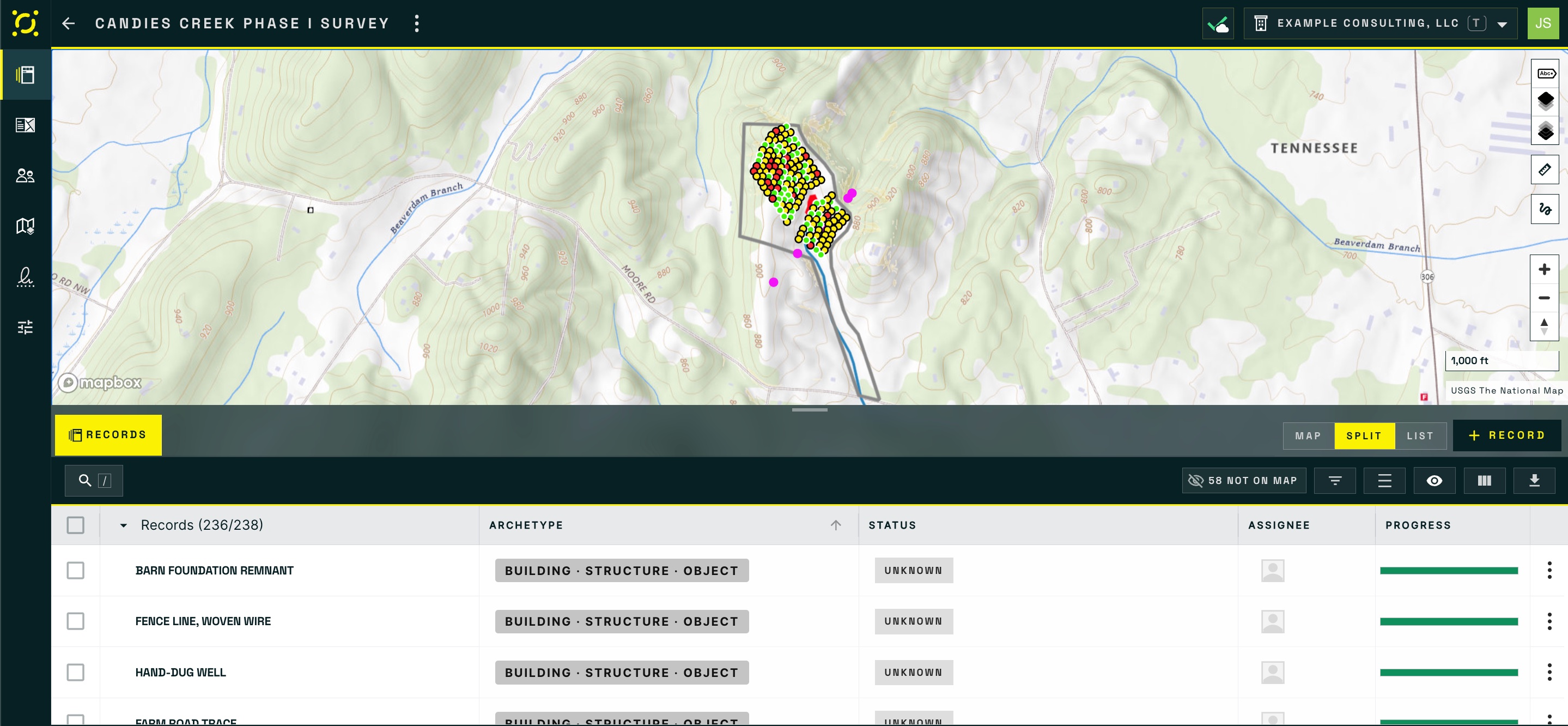
| **Split** | Map on top, Record table beneath. Selecting in one highlights in the other, so this is the view most people leave it on. |
| **List**  | The table fills the window. Best for sorting, filtering, and bulk selection.                                             |

**The tab strip**, top left, starts with a single **Records** tab holding every Record in the Project. Opening a Data Table for an archetype adds a second tab beside it, so you can keep the full Record list and a focused QA table open at the same time and click between them.

**The left rail** holds the Project's other sections: media, members, the map and overlay setup, annotations, and Project settings.

**+ Record**, top right, creates a Record directly in the web app.

> **Screenshot placeholder:** *The Project Workspace on the Records tab, with the tab strip at top left, the Map / Split / List toggle and + Record button at top right, and the left rail visible down the side. Split view, so both map and table are in frame.*

***

## The Map view

The web map shows your Project's Records on top of any overlays the project manager has uploaded. Records are styled by their archetype (points, lines, or polygons) using the symbology configured in the Library.

* **Click anything** — a Record, an overlay feature, a raster footprint — to open its info card. See [Map Layers & Feature Info](/codifi-docs/web-app/the-project-workspace/map-layers-and-feature-info.md).
* **Pan and zoom** with mouse or trackpad. Hold Shift and drag to rubber-band-select Records.
* **Toggle overlays, fade them back, or zoom to one** from the Layers panel on the right edge of the map.
* **Add or move a Record's location** with [Draw Mode & GeoTools](/codifi-docs/web-app/draw-mode-and-geotools.md).

The web map shares its base-map and overlay configuration with the mobile app, so what crews see on iPad matches what you see in the office (minus the user's current GPS position, which is mobile-only).

<figure><img src="https://3544178300-files.gitbook.io/~/files/v0/b/gitbook-x-prod.appspot.com/o/spaces%2FJ8P3pqhxdFwQkIOjOUut%2Fuploads%2Fgit-blob-794e0c2d941a554486376132aa9bb95929c0c420%2Fworkspace-map-view.jpg?alt=media" alt="Split view showing a survey area on a topographic basemap with shovel tests colored by status, above the Record table"><figcaption><p><strong>Split</strong> view. Shovel tests are colored by status straight from the Library symbology, so a run of positives reads off the map before you open a single Record.</p></figcaption></figure>

***

## The List view

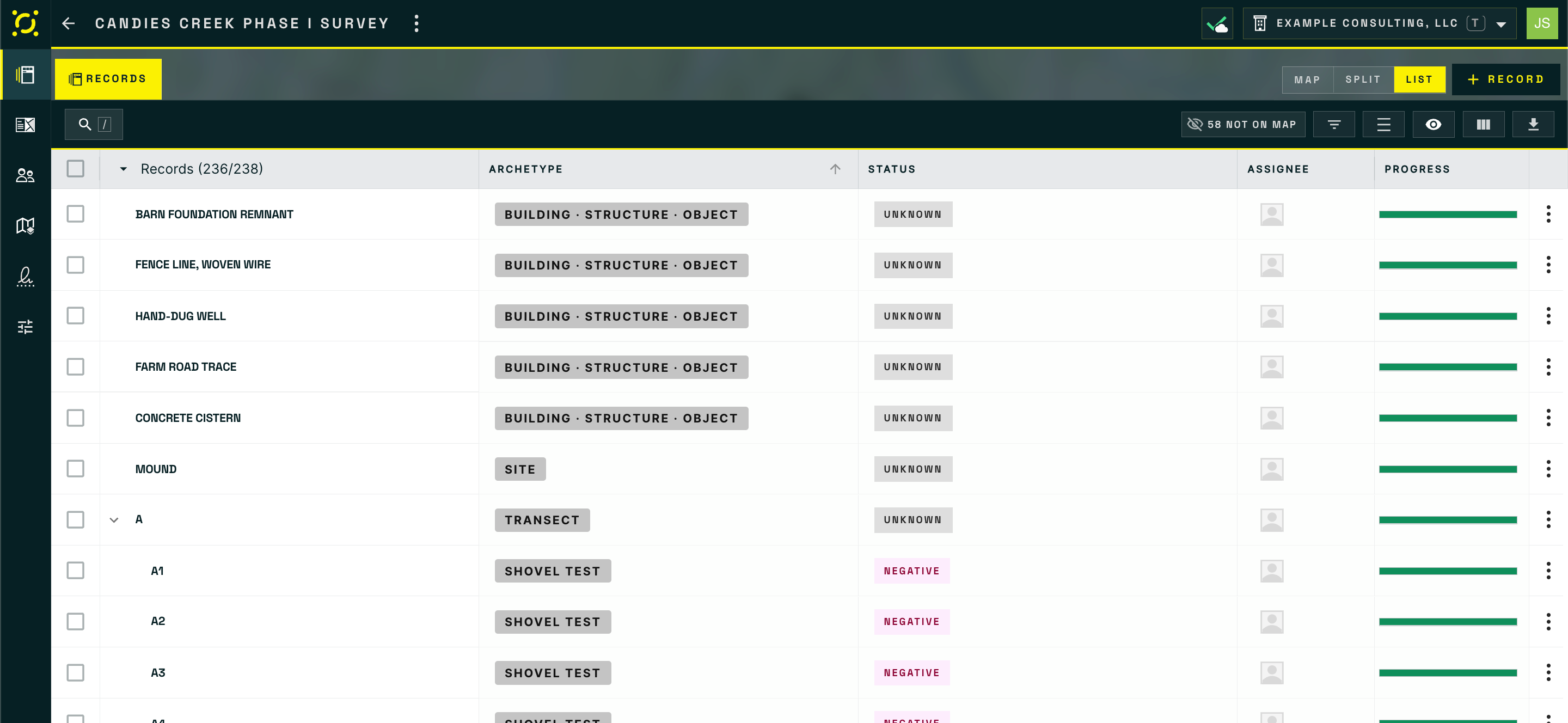
The list view is a sortable table of every Record in the Project, grouped (or filterable) by archetype.

Use it for:

* **Skimming all Records of one type** — e.g., every Shovel Test Probe.
* **Finding a specific Record by name** — sort or use the column filter.
* **Reviewing the hierarchy** — child Records are nested under their parent, so you can see the Project's relationship tree.
* **Bulk selecting** — for batch actions like reassignment or status changes.

Two things in the table header are worth knowing about:

* The count beside **Records** reads `shown / total`, so `236/238` means a filter is hiding two Records. Clear the filter and the two numbers match again.
* **Not on map** counts the Records with no location yet. It is the fastest way to catch a Record somebody created in the office and never went back to place, and clicking it filters the table down to exactly those Records.

<figure><img src="https://3544178300-files.gitbook.io/~/files/v0/b/gitbook-x-prod.appspot.com/o/spaces%2FJ8P3pqhxdFwQkIOjOUut%2Fuploads%2Fgit-blob-3d1bd8c45876094c82c09684f4b868d923189dd2%2Fworkspace-list-view.png?alt=media" alt="The List view showing Records with Archetype, Status, Assignee, and Progress columns, with shovel tests nested beneath their transect"><figcaption><p><strong>List</strong> view. Shovel tests nest beneath the transect they belong to, so the relationship tree reads straight out of the table.</p></figcaption></figure>

***

## Data Tables (QA)

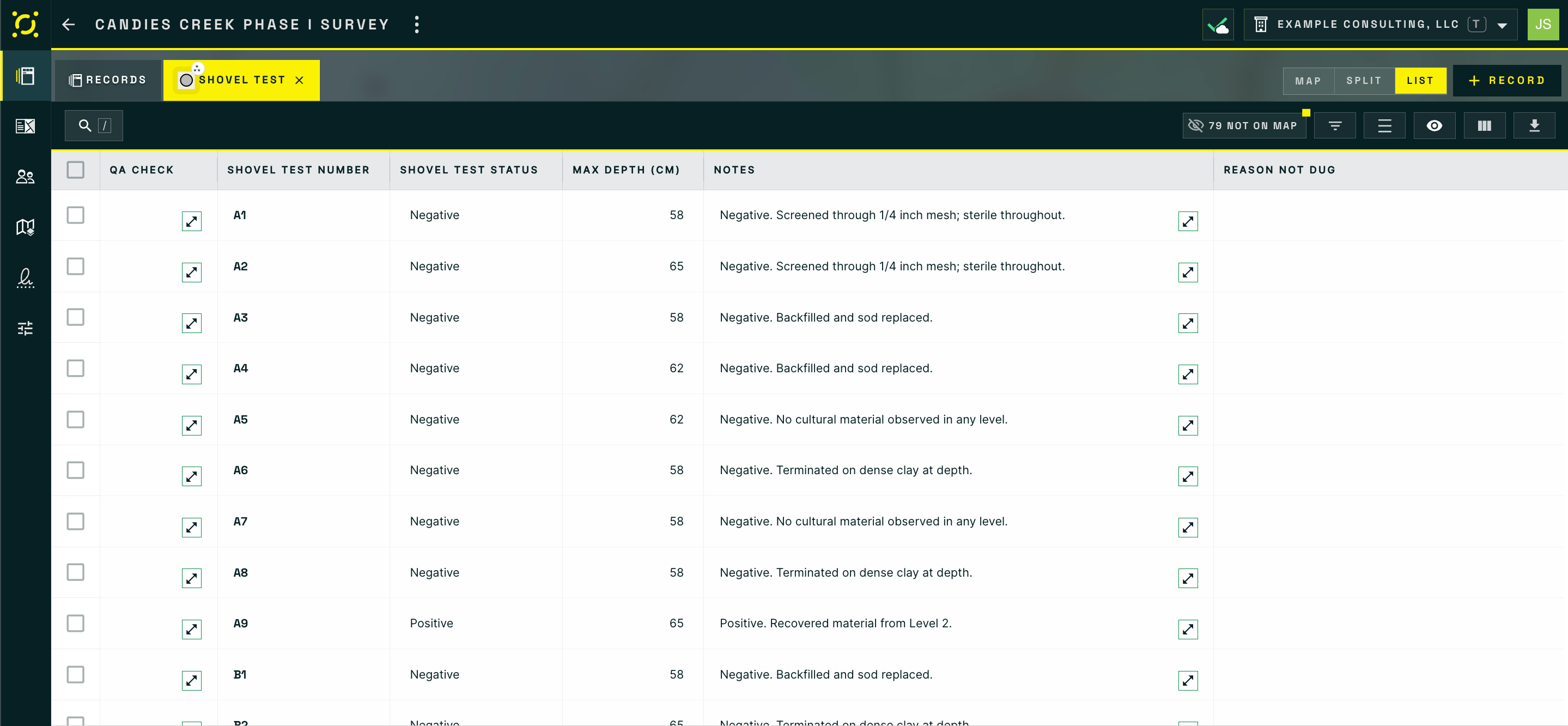
A **Data Table** shows one archetype at a time, with every Record's fields laid out in columns. This is the workhorse for quality control, because it puts one value side by side across every Record that has it.

Open one and it arrives as its own tab next to **Records**, titled with the archetype name. Close it with the tab's × when you are done. The Map / Split / List toggle still applies, so a Data Table can sit beside the map in Split view while you work down it.

Common uses:

* **Spot inconsistencies.** Different recorders sometimes use slightly different terminology. The data table makes outliers obvious.
* **Find empty required fields.** Toggle the QA filter to highlight Records with required fields still blank.
* **Search within an archetype.** "Show me only STPs marked positive."
* **Filter back to map + list.** Send a data-table filter to the rest of the workspace so map and list views also narrow to your QA selection.

Data Tables are configurable per user — choose which columns to show, freeze key columns on the left, and toggle whether completed Records are included in the view.

<figure><img src="https://3544178300-files.gitbook.io/~/files/v0/b/gitbook-x-prod.appspot.com/o/spaces%2FJ8P3pqhxdFwQkIOjOUut%2Fuploads%2Fgit-blob-dab4b7e20cc05c99a9dd85b50bb9ed11f2e1fbda%2Fworkspace-data-table-shovel-test.png?alt=media" alt="A Shovel Test Data Table open as a tab beside Records, with QA Check, Shovel Test Number, Status, Max Depth, Notes, and Reason Not Dug columns"><figcaption><p>A <strong>Shovel Test</strong> Data Table, open as its own tab beside <strong>Records</strong>. One positive result in a column of negatives is visible without opening anything.</p></figcaption></figure>

***

## Reports & Exports

From the workspace toolbar, you can run two kinds of output:

* **Reports** — Word (.docx) or Excel (.xlsx) documents generated from templates authored in the [Reports section](/codifi-docs/reports/how-to-use-the-documentation.md). Useful for client deliverables, SHPO submissions, and any fixed-format documentation.
* **GIS Exports** — geospatial data exports as GeoPackage (.gpkg), Shapefile (.shp), or GeoJSON (.geojson). See [GIS Exports](/codifi-docs/web-app/gis-exports.md).

***

## Related

* [Map Layers & Feature Info](/codifi-docs/web-app/the-project-workspace/map-layers-and-feature-info.md) — controlling what the map draws, and reading what you click
* [Composition Builder](/codifi-docs/web-app/composition-builder.md) — how the archetypes you see here were authored
* [Map Setup & Offline Areas](/codifi-docs/web-app/map-setup-and-offline-areas.md) — how the map's overlays and offline areas are configured
* [Project Members](/codifi-docs/cross-platform-features/project-members.md) — controlling who has access to a Project
* [Project History](/codifi-docs/web-app/project-history.md) — auditing changes