> For the complete documentation index, see [llms.txt](https://codifi-fdm.gitbook.io/codifi-docs/llms.txt). Markdown versions of documentation pages are available by appending `.md` to page URLs; this page is available as [Markdown](https://codifi-fdm.gitbook.io/codifi-docs/web-app/working-with-media.md).

# Working with Media

Everything you can do with photos, videos, documents, and audio on the web app: finding them, reading and editing their details, seeing them on the map, and getting them back out again.

***

## Where Media Lives

Media reaches the web app in two views, and they show the same files from different angles.

| View                     | What it shows                                                                                      | Use it when                                                                                                |
| ------------------------ | -------------------------------------------------------------------------------------------------- | ---------------------------------------------------------------------------------------------------------- |
| **Project Media**        | Every media file in the Project, filterable by Media Subtype, Archetype, date, and who captured it | You want to review a whole day's photography, or find something without knowing which Record it belongs to |
| **A Record's Media tab** | Only the media attached to that Record                                                             | You are working through one Record and want its photos in context                                          |

Both open the same viewer, so anything below works from either place.

***

## The Photo Lightbox

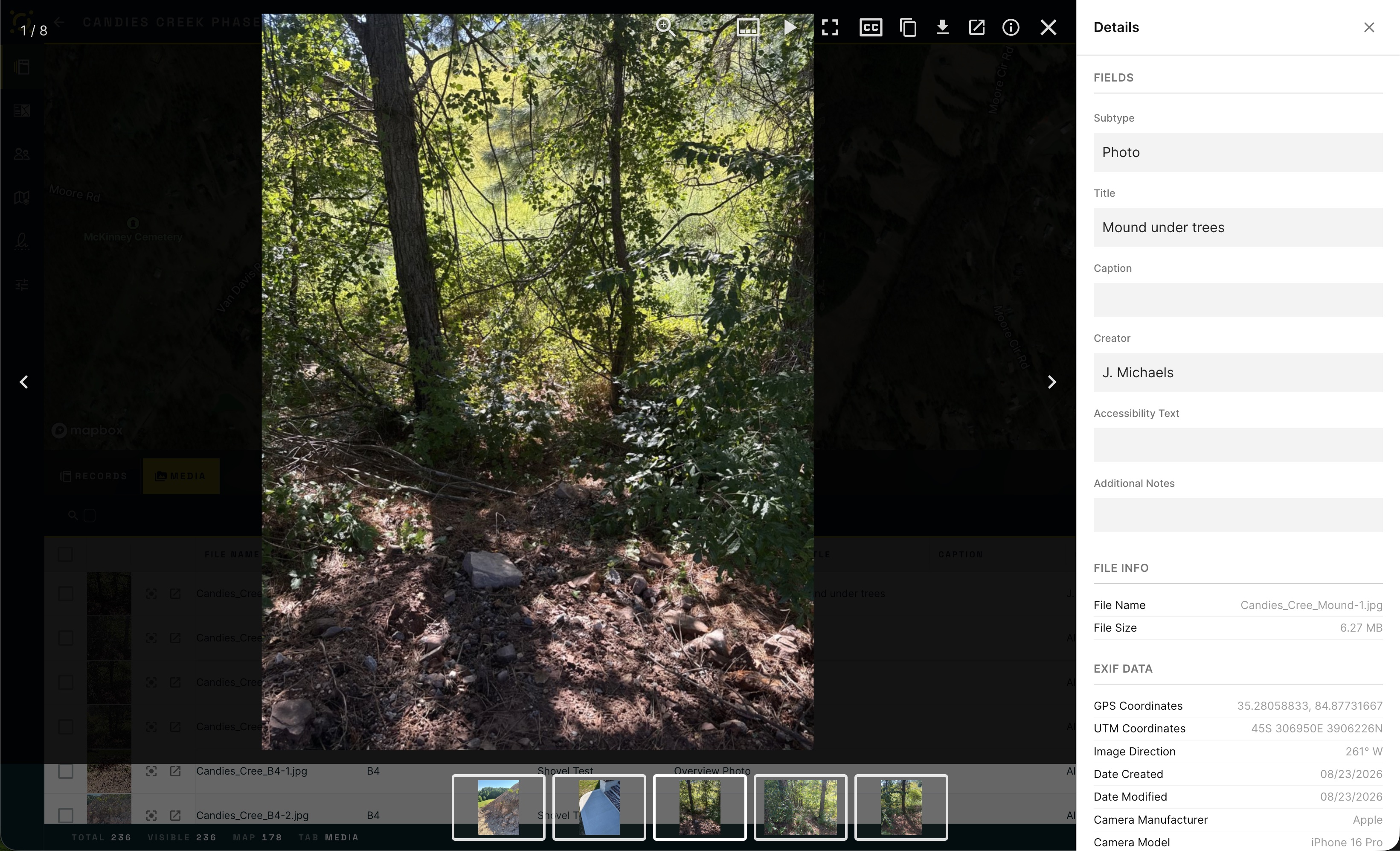
Click any photo and it opens full screen with a details panel beside it.

**Reading and editing without leaving.** The panel carries the photo's Media Subtype, its Fields, its file information, and its EXIF data, including the compass bearing if the photo was taken with the mobile camera. Change the subtype or edit a Field inline and it saves without closing the photo, so you can work through a batch without bouncing in and out.

**Copy and Download hand you the original.** Both actions give you the original file rather than the on-screen preview. Download keeps full resolution. Copy puts the real image on your clipboard, so pasting into a report or an email gives you the real photograph rather than a thumbnail.

**Photos are linkable.** The open photo is written into the address bar. Refresh, bookmark, or paste the link to a colleague and the same photo reopens. Your browser's Back button closes the lightbox rather than leaving the Project.

<figure><img src="https://3544178300-files.gitbook.io/~/files/v0/b/gitbook-x-prod.appspot.com/o/spaces%2FJ8P3pqhxdFwQkIOjOUut%2Fuploads%2Fgit-blob-d97af460b4f269c2e11a3880e6d53eee415b9563%2Fmedia-lightbox-details-panel.jpg?alt=media" alt="A photo open full screen in the lightbox with a Details panel on the right showing Fields, File Info, and EXIF Data, and a filmstrip of other photos along the bottom"><figcaption><p>The <strong>Details</strong> panel sits beside the photo. <strong>Fields</strong> at the top are editable in place, <strong>File Info</strong> and <strong>EXIF Data</strong> below are read-only, and the filmstrip moves you through the rest without closing.</p></figcaption></figure>

***

## Seeing Photos on the Map

Photos with a location appear as camera markers on the Project map, oriented to the direction the photo was taken where a bearing was recorded. Clicking a marker opens that photo in the lightbox.

This is often the fastest way to answer "what did this area look like" without knowing which Record covers it.

***

## Getting Media Out

There are three routes out, and which one you want depends on how much you need and at what resolution.

### One photo at full resolution

Open it in the lightbox and click **Download**. You get the original file exactly as it was captured.

### A batch, as a zip

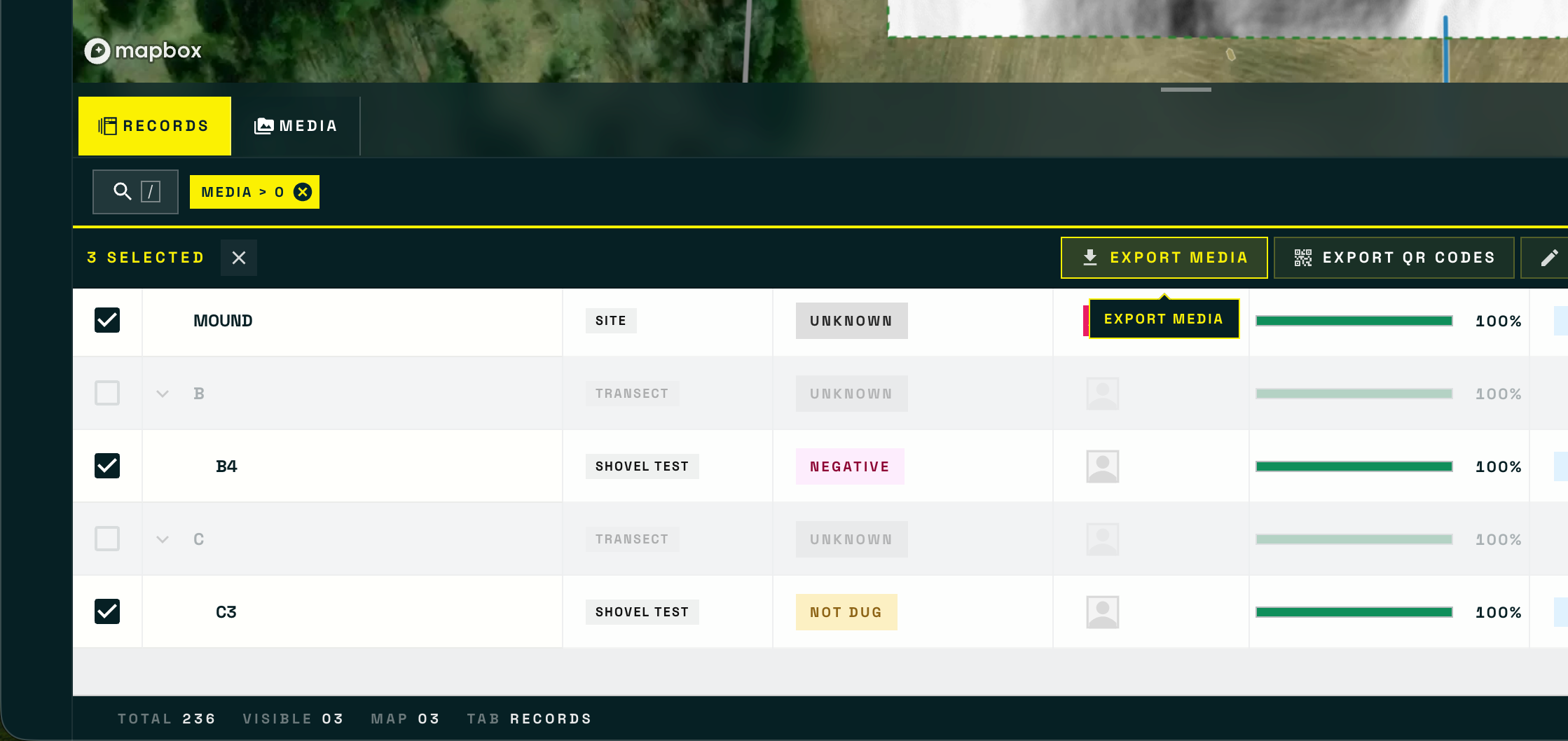
New in v3.3. Select what you want and use **Export Media**.

* **From the Records list**, ticking Records exports the media belonging to those Records.
* **From the Media tab**, filter down to what you want, select, and export the filtered set wholesale.

The zip is flat, with the photos and a **Media Log** all at the top level, so it drops straight into a deliverable folder without reorganizing. If an individual file fails to retrieve, it is listed in a **Failed Media.csv** inside the zip rather than aborting the whole bundle, so a large export never fails wholesale because of one bad file.

<figure><img src="https://3544178300-files.gitbook.io/~/files/v0/b/gitbook-x-prod.appspot.com/o/spaces%2FJ8P3pqhxdFwQkIOjOUut%2Fuploads%2Fgit-blob-150160fc8936964b75b38b76a3ed1e45bd3c3248%2Fmedia-export-batch-action.png?alt=media" alt="The Records list with a Media greater than zero filter applied, three Records ticked, and the Export Media button highlighted in the batch action bar"><figcaption><p>Three Records selected with a <strong>Media > 0</strong> filter applied, so nothing without photos is in the set. <strong>Export Media</strong> and <strong>Export QR Codes</strong> both act on the selection.</p></figcaption></figure>

### An entire Project at original resolution

Batch export is built for working sets rather than archives. If you need every original file for a whole Project, for an agency deliverable or a project closeout, **contact Codifi support** and we will prepare it for you.

{% hint style="info" %}
**Why the archive route is a request rather than a button.** Original-resolution media for a full Project routinely runs to many gigabytes. Producing that reliably needs to be scheduled rather than generated on demand in a browser tab, so we handle it as a request. Working sets and deliverable-sized batches are what the in-app export is for.
{% endhint %}

***

## Deleting Media

Deleting from the web app follows the same rules as [deleting on mobile](/codifi-docs/mobile-app/capturing-photos-and-media.md#deleting-media):

* Anyone with the delete permission for the Project can remove a photo. That is a soft delete and remains recoverable.
* Permanently destroying a file is limited to the person who captured it.

***

## Related

* [Capturing Photos & Media](/codifi-docs/mobile-app/capturing-photos-and-media.md) — how media gets captured in the field
* [Camera Compass & Live Map](/codifi-docs/mobile-app/mapping-locations/camera-compass-and-live-map.md) — where the saved bearing comes from
* [GIS Exports](/codifi-docs/web-app/gis-exports.md) — getting the spatial data out
* [Media Configuration](/codifi-docs/mobile-app/mobile-project-settings/media-configuration.md) — file naming and Media Subtypes